

Context Best Practices
Before you begin, ensure you have explored the context section to get familiar with Catio's Context Section.
This guide covers practices. For what Context is and why every Catio output depends on it, start with What is Workspace Context?. For the operating guide on where entries belong and how to keep them current, see Using Context Effectively, and for the catalog of what to bring in, see What Documents to Upload.
Why This Is Important
Catio generates recommendations by analyzing your architecture against your business and technical requirements. Context provides the requirements that drive this analysis.
Without context, Catio has visibility into your architecture but lacks the criteria to evaluate it. Recommendations cannot be generated until at least one requirement is defined. The more specific and comprehensive your context, the more targeted and actionable your recommendations become.
Two Ways to Upload Context
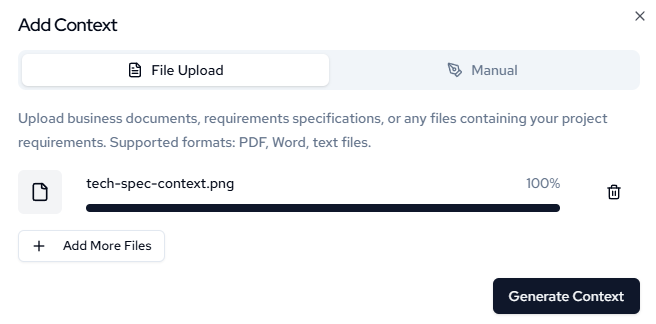
- File Upload: Upload files directly to your workspace's context section.
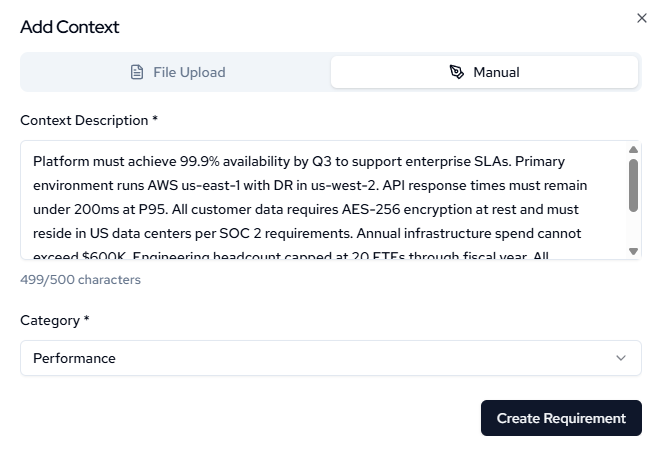
- Manual Upload: Navigate to the Context section in your workspace and upload documents directly by selecting the appropriate category.
File Upload
See supported file types here.
Recommended Document Types
- Requirements specifications: PRDs, technical requirements documents, architecture decision records
- Business documents: Strategic plans, project charters, business cases
- Technical documentation: System design documents, API specifications, infrastructure diagrams
- Compliance materials: Security policies, regulatory requirements, audit findings
- Architecture artifacts: Current state diagrams, legacy system documentation, vendor assessments
If these files are not natively supported, converting them to a PDF is necessary before upload.
File Upload Best Practices
- Upload documents with specific, measurable requirements. The more specific the document, the more tailored Catio will be able to make its recommendations.
- Include documents that define constraints such as budget limits, compliance mandates, or timeline restrictions
- Use recent documents to ensure recommendations reflect current organizational state
- Remove credentials or sensitive data not required for analysis before uploading
Note: Once you upload a document, Catio will then generate context based on the content of the document. This may take a few minutes depending on the size of the document.
After uploading the file, context will then be available to view within the selected category. To drill down further, click on the Detailed View button. From there you can see the extracted context from the document as well as what categories Catio tagged it as.
Manual Upload
Enter context directly using the text input field. Each entry supports up to 500 characters and requires a category assignment.
Manual Upload Best Practices
Write clear, specific statements that define a requirement or constraint. Each entry should address a single requirement.
Effective entries are specific and measurable:
- "System must support 5,000 concurrent users with response times under 200ms"
- "Annual infrastructure budget cannot exceed $750K including licensing"
- "All customer data must reside in EU data centers per GDPR requirements"
Avoid vague statements:
- "Improve system performance"
- "Reduce costs"
- "Better security"
Updated about 1 month ago