

Create a View
Build a filtered perspective and save it so you and Catio can both point at it.
Creating a view is how a useful filter stops being something you rebuild from memory and becomes something you and Catio can both point at. For what views are and when to save one, see Views.
Select a Base Diagram
Navigate to the Stacks module and select an existing view generated from Catio. Infrastructure View is a good starting point. (You can view your architecture in list form by selecting Inventory View.)
If you do not have a view and see something like the following:
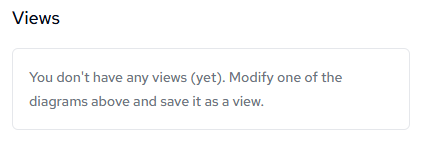
Refer to our first walkthrough page to start ingesting your data so Catio can give you a view of your architecture.
Add Filters
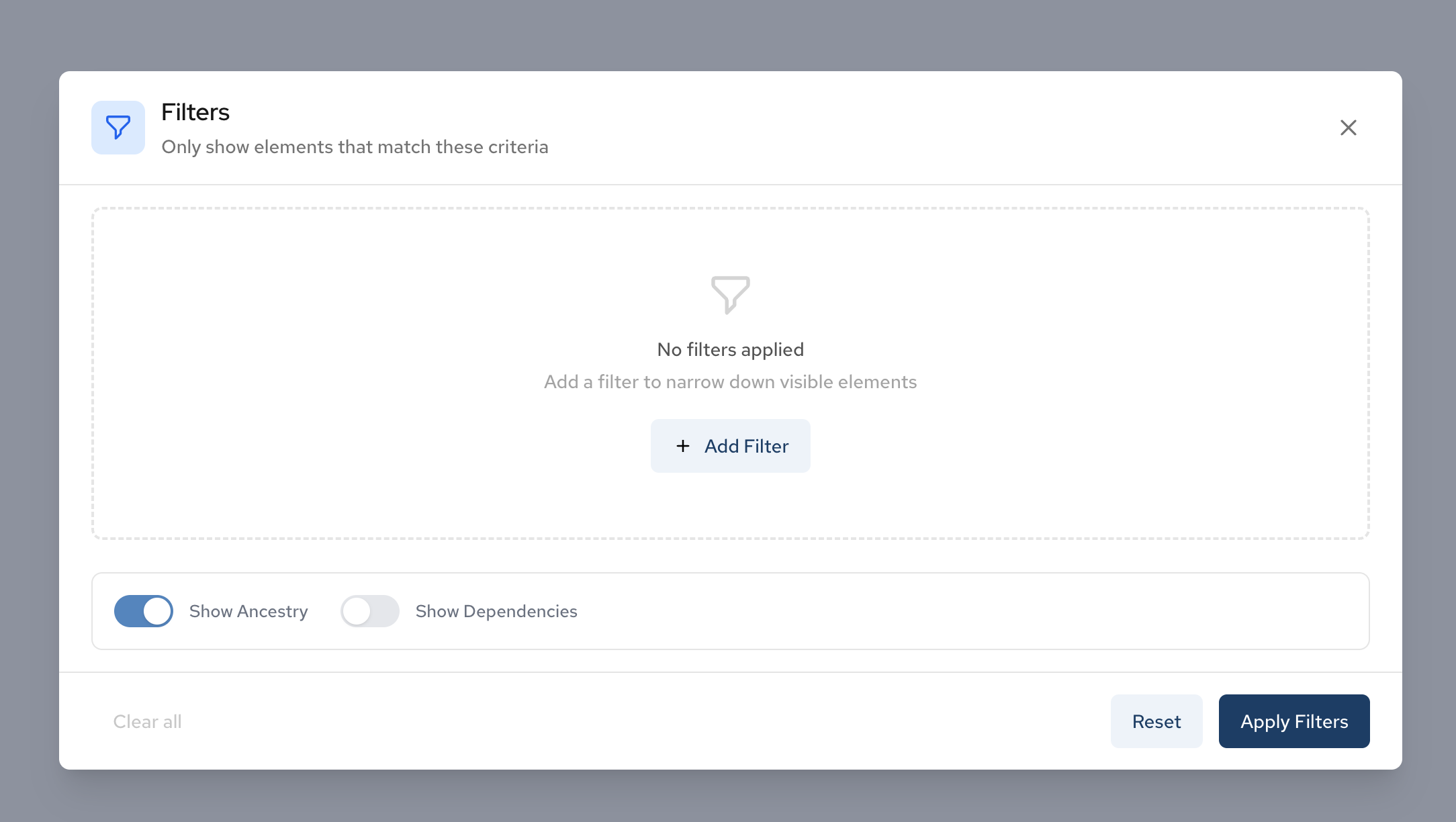
Click the Filter button in the toolbar to open the Filters panel.
Use the filters to narrow down the components displayed in your diagram based on criteria such as component type, tags, or relationships.
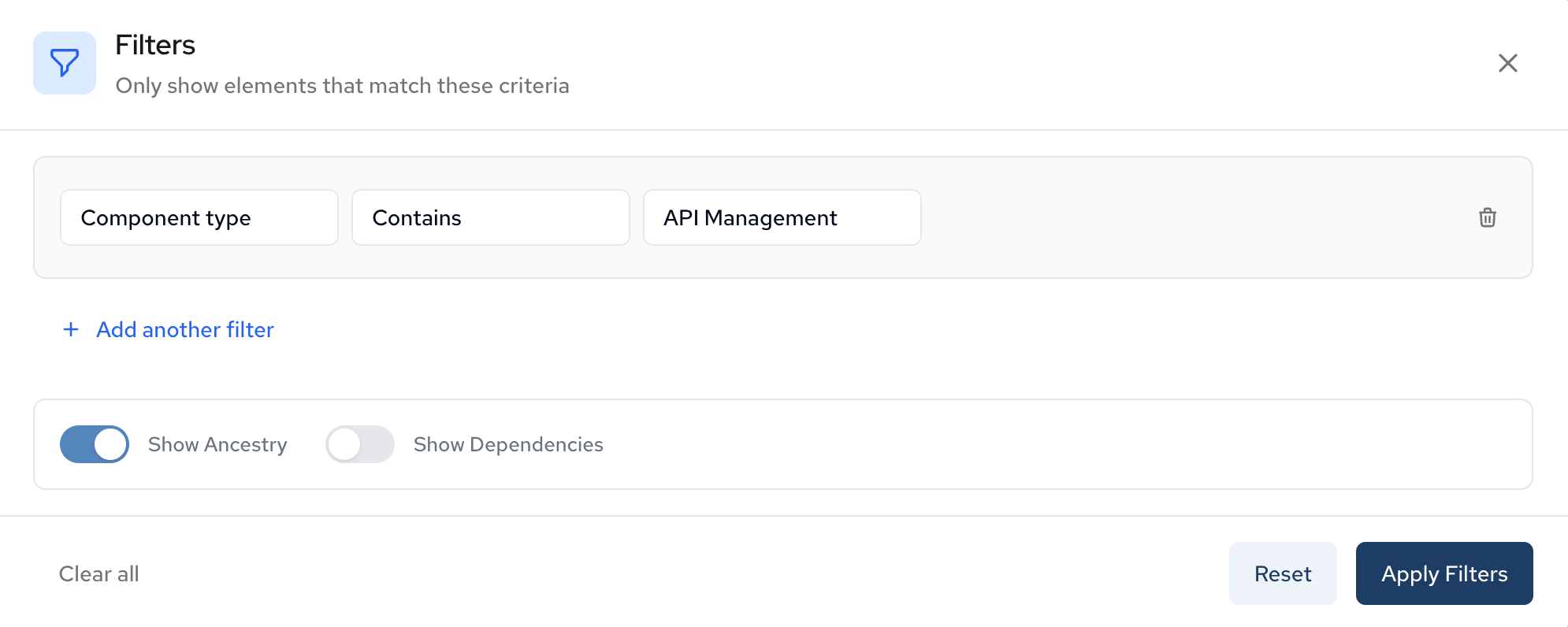
Filters narrow the components shown by type, tag, or relationship.
Example: Finding all components that contain "API Management" in the name or tag.
Add Components
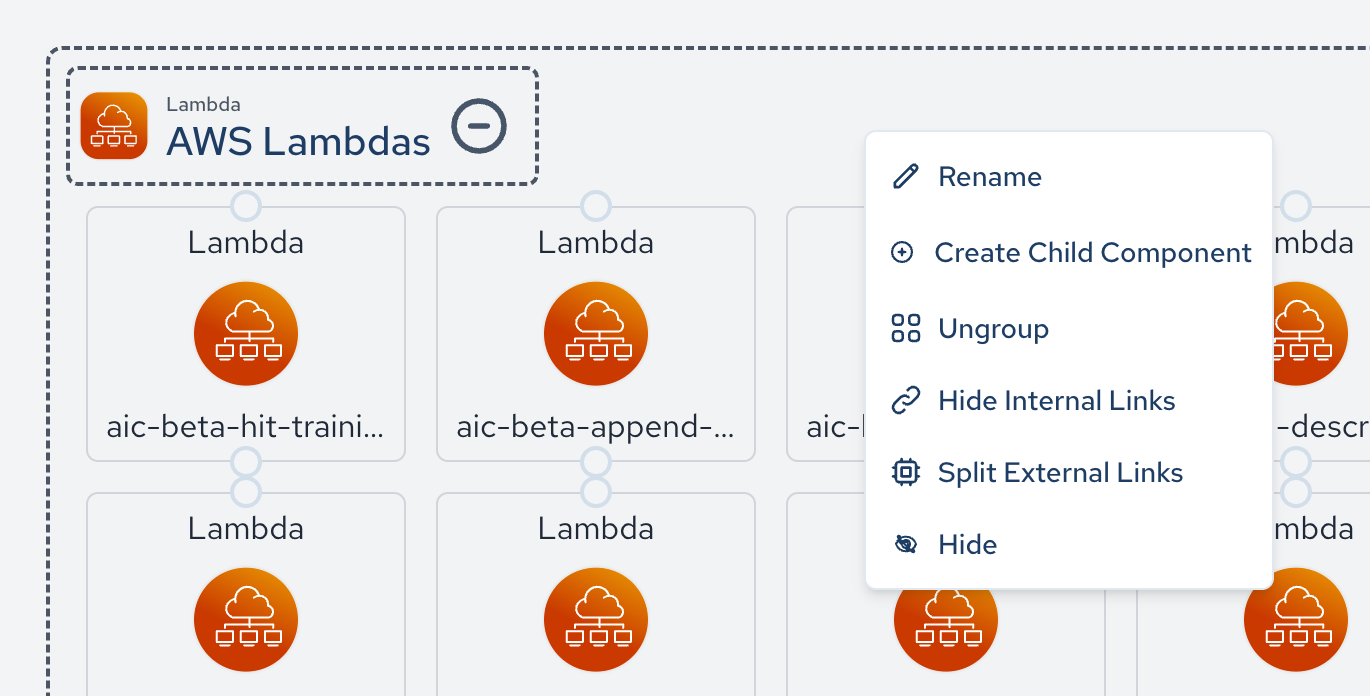
Right click in the canvas within the group you would like to place your component in, and select Create Child Component to add a custom component to your infrastructure.
Enter the component name, select the component type, and add any custom tags. Click Add custom component to add it to your diagram.
Note: These components are already created automatically when Catio understands your architecture. This allows you to add custom components that may not be part of your current state.
Save the View
After applying the necessary filters you want to see, save your infrastructure as a view by clicking the Save button in the toolbar, or by clicking the menu in the center of the top navigation bar.

And then name your view before navigating off this page.
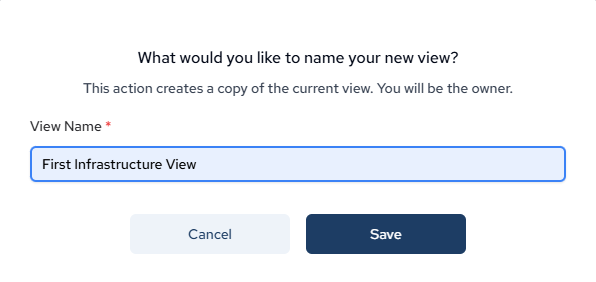
Naming matters more than it looks. A saved, named view is what appears in the Scope selector when you generate blueprints or create a plan, so the name is how you and your team will later recognize which slice of the architecture a set of findings was generated against. Name it after the boundary it represents rather than the filter you happened to apply.
Updated about 2 months ago