

Edit a Workspace
Keep a workspace boundary true as the decision it supports evolves.
Editing is how a workspace stays true as the decision it supports evolves. The objective, the in-scope systems, and the constraints you set here are what future Blueprints are evaluated against, so a workspace carrying last quarter's objective will keep producing confident answers to a question your team has stopped asking. For what a workspace is a unit of, see What is a Workspace?.
To edit a workspace's details in Catio:
- Click Workspaces (under General) in the left side menu.
- Hover over the row of the workspace you'd like to edit, then click the ... that appears on the right side of the entry.
- Select Edit workspace.

The workspace editor will open to the same five-step flow used when creating a workspace. Update any fields as needed and click Save to persist your changes. For details on each step, see Create a Workspace.
Set workspace access
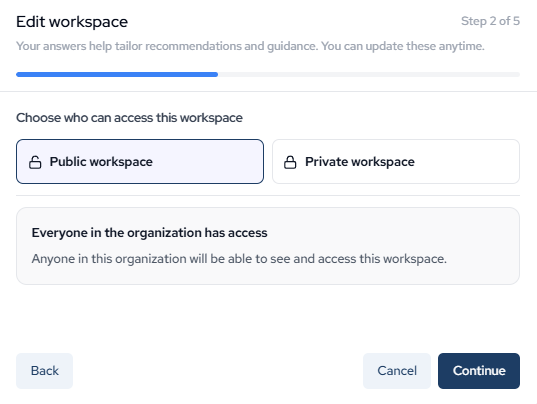
Step 2 of the workspace editor controls who can access the workspace. Choose between two access modes:
Public workspace: Everyone in the organization has access. Anyone in the organization will be able to see and access this workspace.
Private workspace: Access is limited to specific people or teams. Use the search field to add users or teams, and manage access for existing members in the list below.
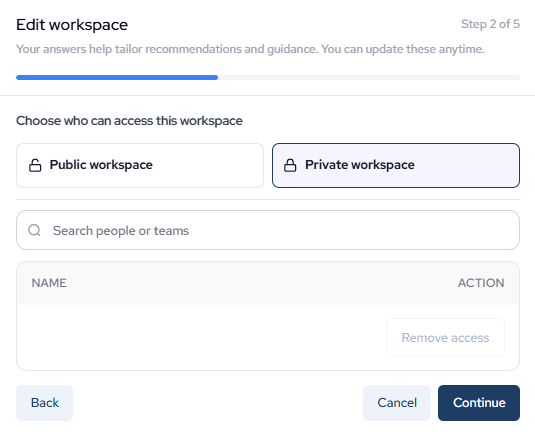
Click Continue to move to the next step, or Cancel to discard your changes.
Updated about 2 months ago