

Using Stacks to Investigate Your Architecture
Before you begin, ensure you have integrations added and you have subscribed to said integrations.
This workflow uses Diagrams, Views, and Integrations. Start with those if any is unfamiliar.
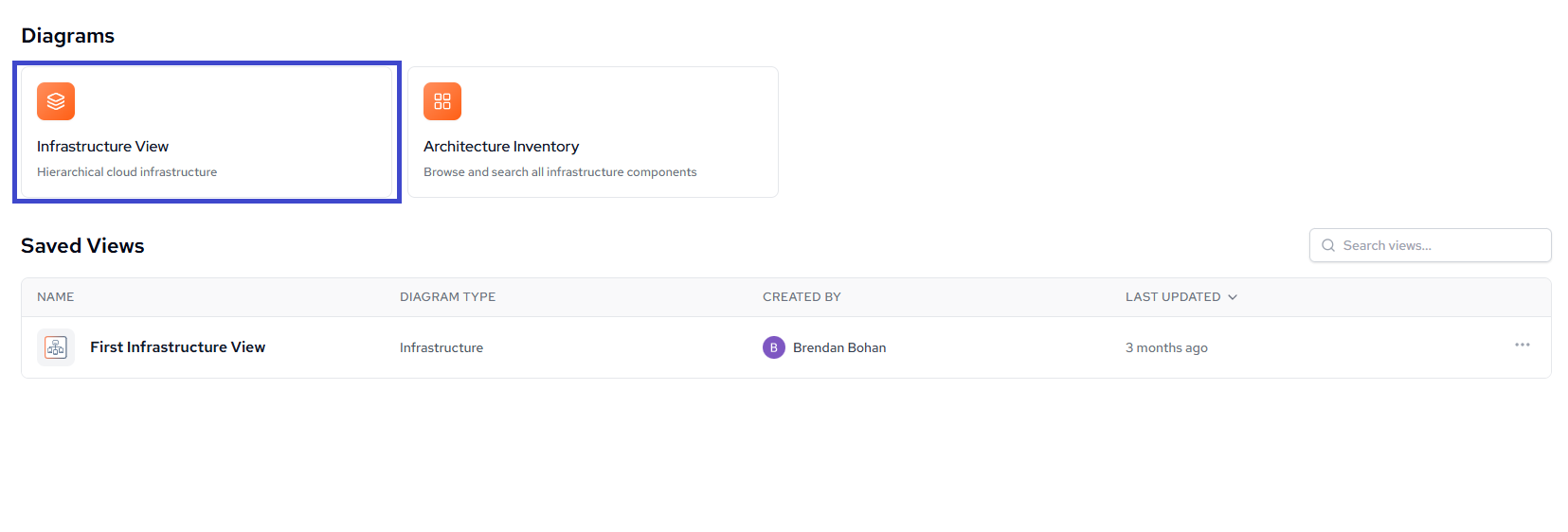
Navigate to the Stacks page within your workspace.
Click on Infrastructure View.
Diving Deeper
Once you are in this view, you can start to investigate your architecture.
Your view may be different than what we are showing here depending on your subscriptions and the architecture you have in place, but the steps to investigate are the same.
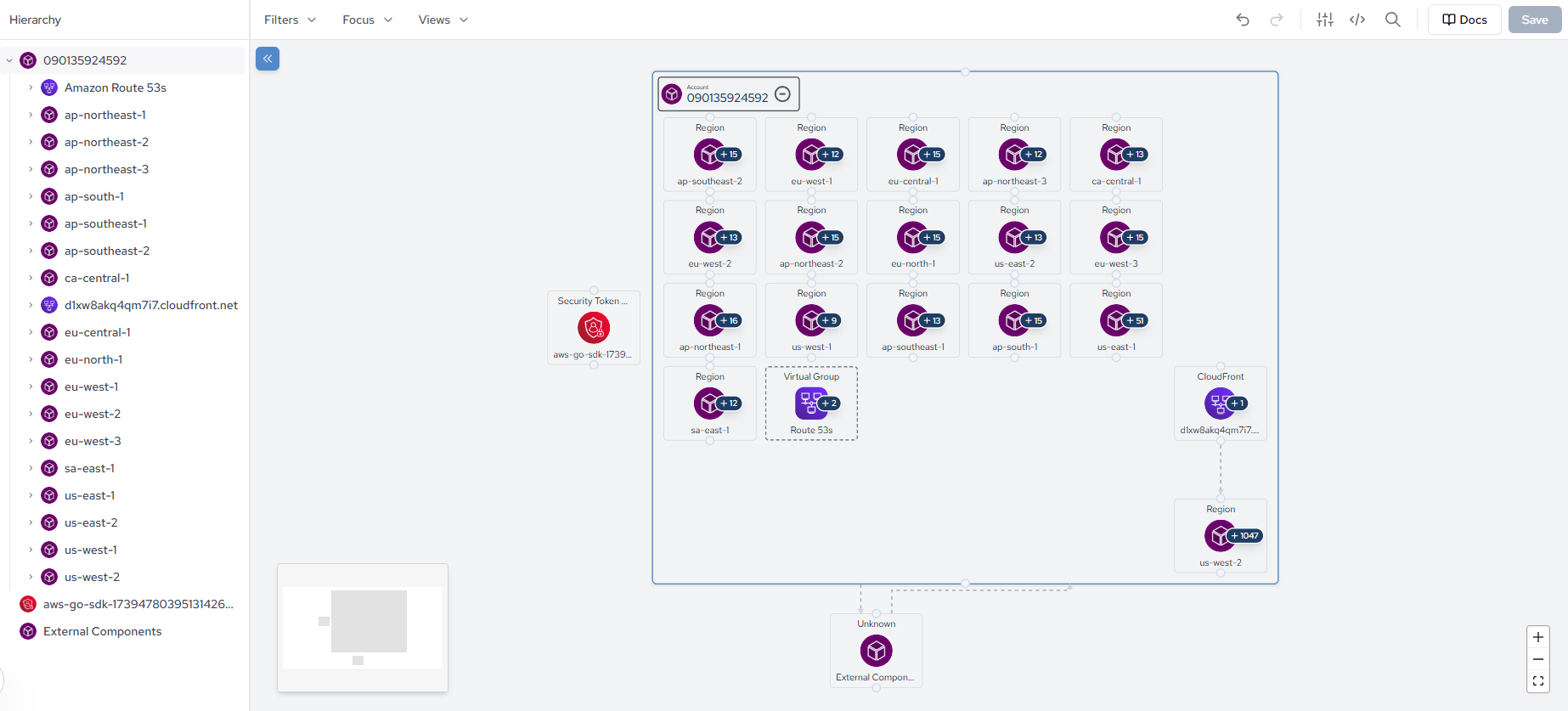
As you can see, this architecture currently has the following:
- AWS Regions
- AWS CloudFront
- AWS Route 53
To get started, click on a component, and Catio will automatically focus your view to that region component.
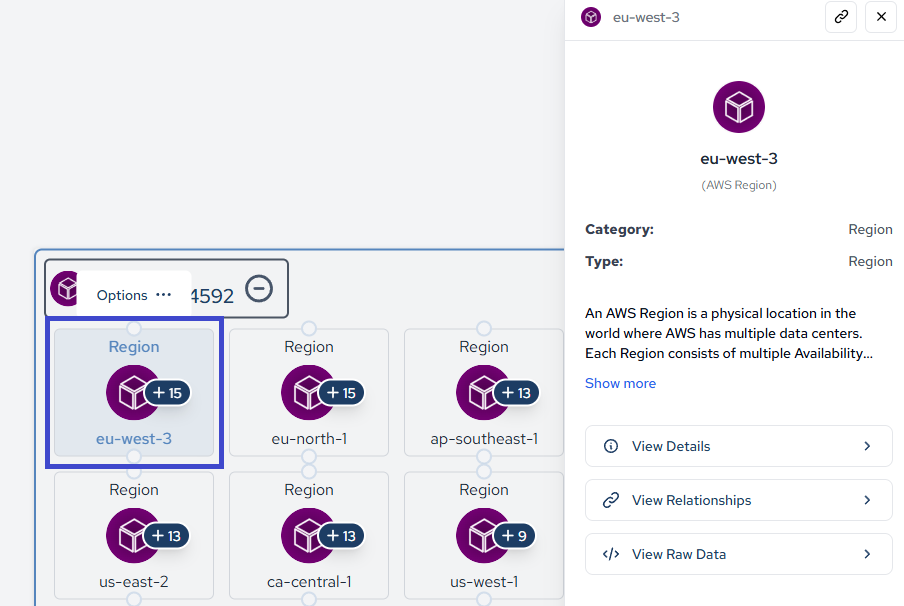
From here, on the right popup, you will see menus such as:
- View Details
- View Relationships
- View Raw Data
View Details will give you more information on the properties of that specific region component. This is more so to give you context on what the resource is, its tags, and other metadata.
View Relationships will show you the relationships between the selected region component and other resources in your architecture. This is where you will be able to start digging deeper into how your architecture is speaks to other parts of your system.
View Raw Data will show you the raw data from the component that was clicked. It provides you the JSON format configuration file of the resource. This can be useful for when you need the full JSON output to copy and paste into other configuration files within your organization.
Example:
{
  "id": "aws:ec2:region:090135924592/eu-west-3",
  "name": "eu-west-3",
  "category": "Region",
  "type": "Region",
  "product": "AWS Region",
  "properties": {
  },
  "rawComponent": {
    "id": "aws:ec2:region:090135924592/eu-west-3",
    "name": "eu-west-3",
    "type": "Region",
    "category": "Region",
    "product": "AWS Region",
    "tags": [],
    "componentConfig": {
    },
    "__typename": "ArchitectureStateComponent"
  }
}
For this guide, we will be focusing on View Relationships to investigate our architecture further.
You can either click on the relationships in the popup on the right side, or you can click twice on the drill down arrow on the left side (see below).
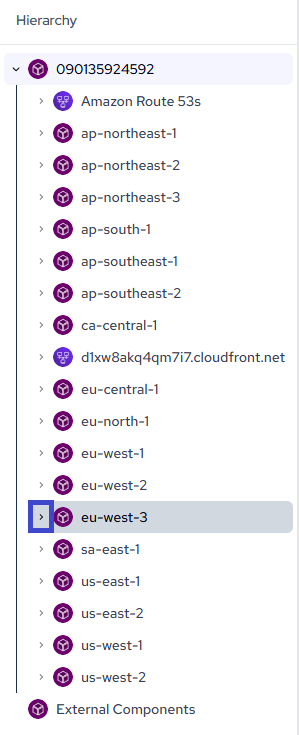
A new popup will appear with all the child relationships of the selected region component. You should see something like this:
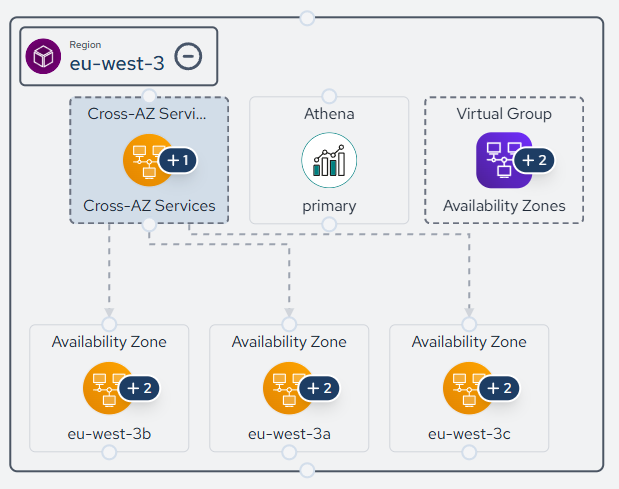
The lines indicate relationships between resources. You can click on any of these resources to continue drilling down into your architecture.
Expand Component
Taking it a step even further, you can also expand a component to see all its child relationships by hovering over the "+1" or however many child relationships there are, and clicking on it.
See below:
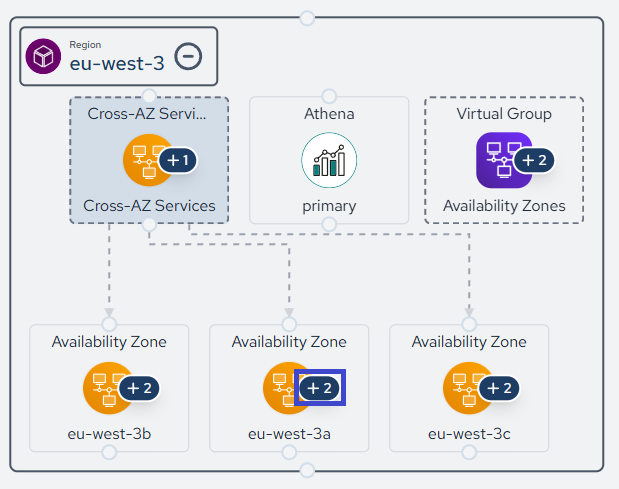
After clicking (however many levels deep you want to go), you should have all the components at its lowest level expanded out for you to investigate. Here you can then see all the details of said components.
Why this is important
When you have a massive architecture, it can be hard to find the specific resource that may be causing issues within your system/application. Instead of having to manually search through your architecture, Catio give you an easy, visual way to drill down into your architecture and find the resources you need to investigate.
This is especially useful when multiple components are down or not functioning as expected. You can quickly drill down into the affected components to identify potential issues and where they may be originating from via relationships.
Updated about 1 month ago