

Edit a View
Modify existing views by updating filters, component properties and relationships.
A view is meant to survive the architecture changing underneath it. Editing is how you keep a saved perspective pointed at the right thing as services get added, renamed, or reorganized, without losing the boundary the view exists to hold. For what views are for, see Views.
Editing Filters
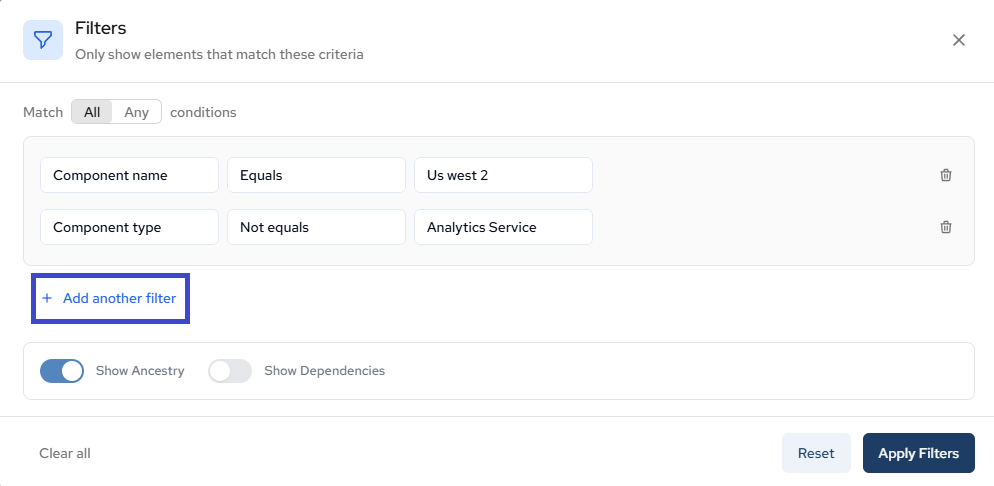
Using the example from Create a View, once you are looking at the new filter view you created, you can edit the filters by clicking the Filter button in the toolbar to open the Filters panel.
After clicking into the Filters panel, you can adjust existing filters or add new ones to refine the components displayed in your diagram.
See below
See Create a View for filter mechanics.
Viewing Component Details
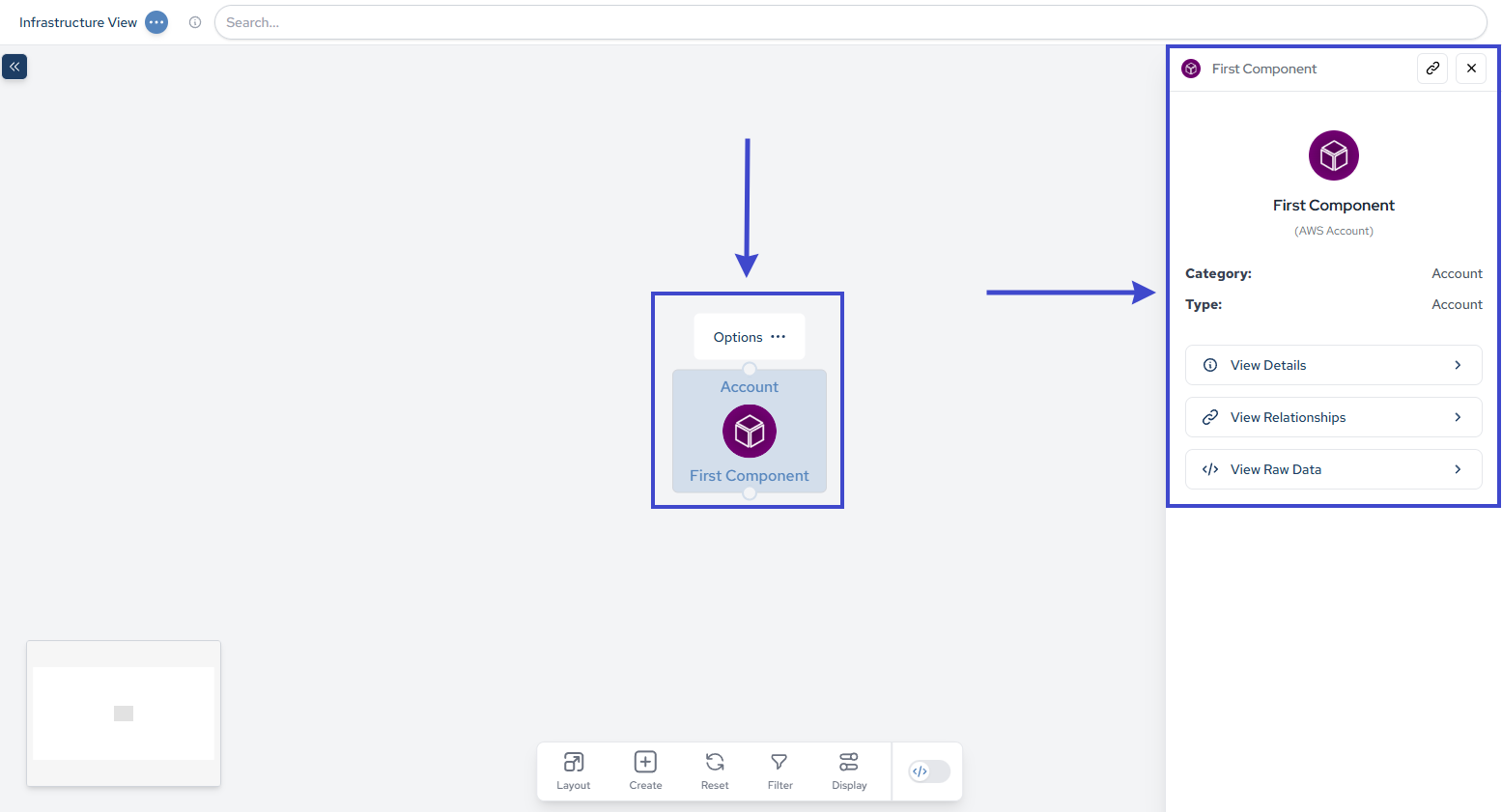
After opening a view, click any component to display its properties and relationships.
Editing Components
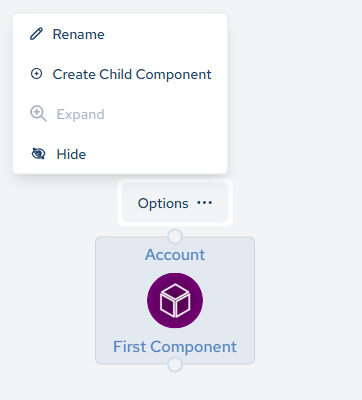
Add child components or rename existing elements to reflect infrastructure changes.
Editing Relationships
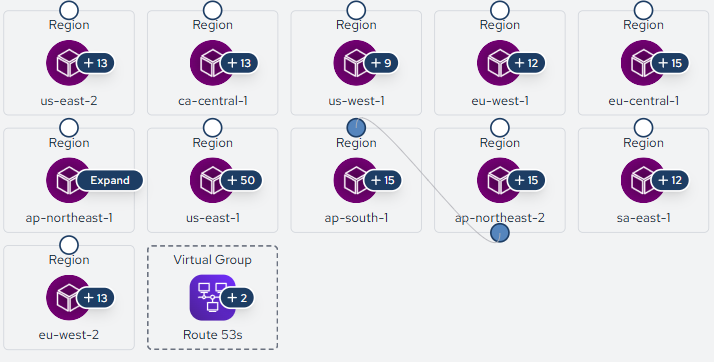
Click on a relationship line between components to modify its properties or change its type.
Saving Changes
And as always, remember to save your changes by clicking the menu in the top left corner and selecting Save.

If the view is used as a Scope target for plans or blueprint generation, an unsaved change is a change Catio will not reason about. Save before you generate.
Display Settings
You can always update and edit how you view these filters via clicking into the Display Setting modal in the top right:

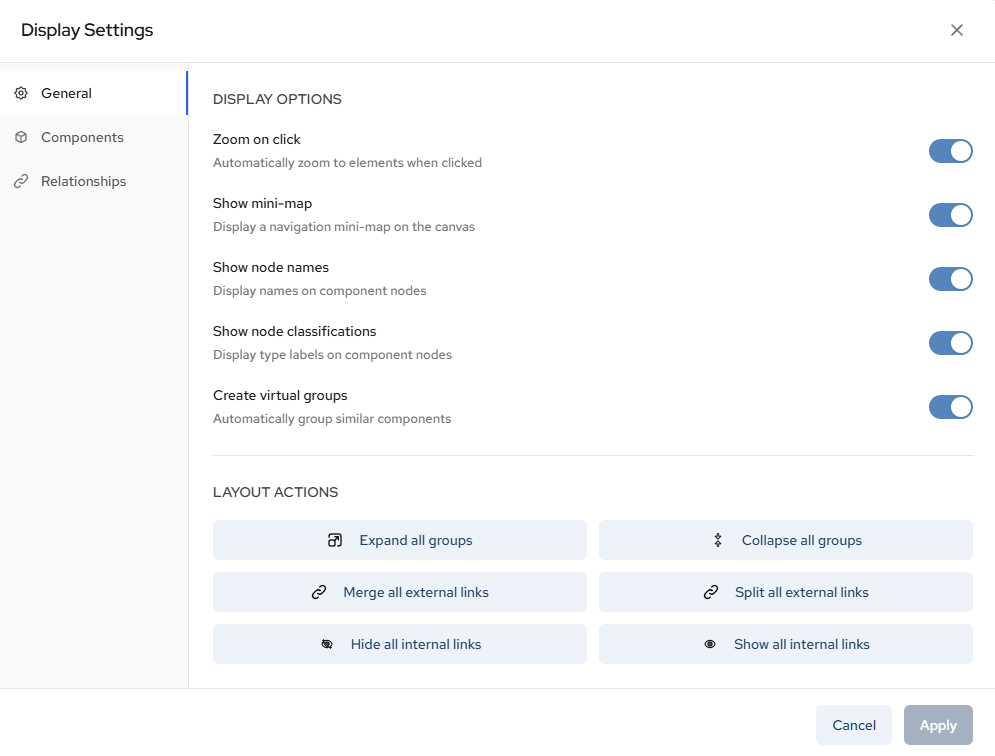
In the General tab of the Display Settings modal, you can control how the canvas behaves and how information is visually presented.
- Toggle Zoom on click to automatically focus on elements when selected.
- Enable or disable the mini-map for easier navigation across large diagrams.
- Show or hide node names directly on components.
- Display node classifications (type labels) on each component.
- Automatically group similar components using Create virtual groups.
- Use layout actions to:
- Expand or collapse all groups.
- Merge or split external links.
- Show or hide internal links.
- Apply or cancel your changes before closing the modal.
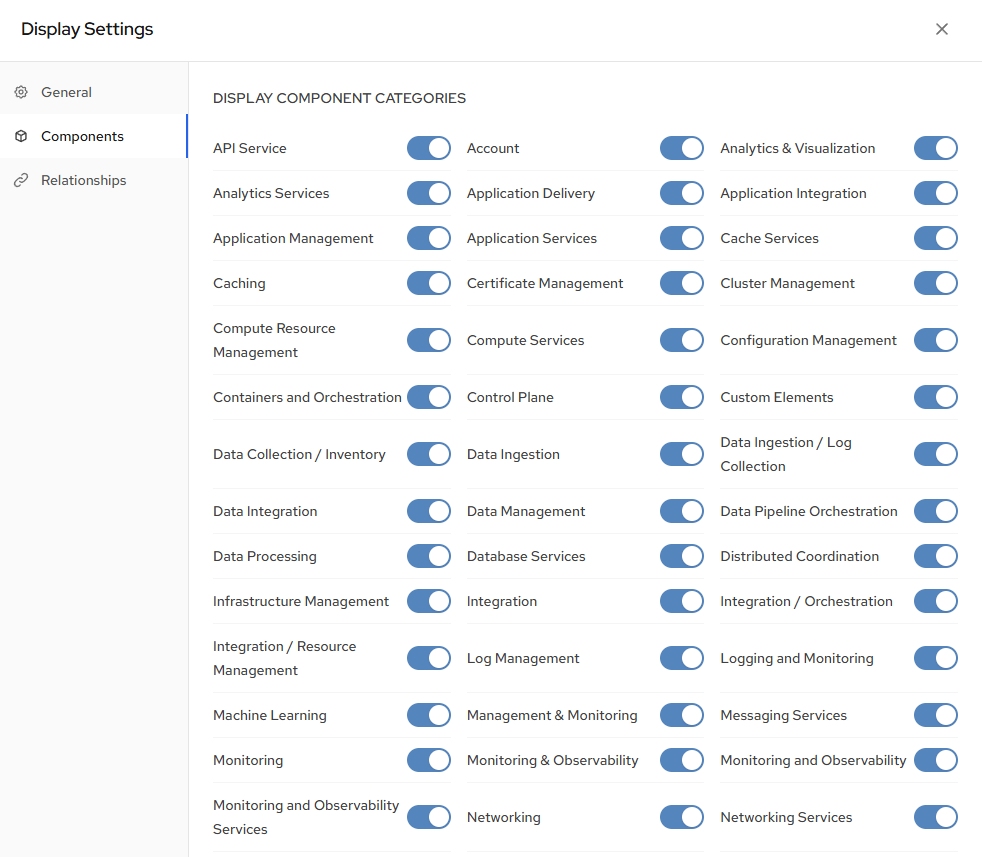
In the Components tab, you can control which categories of infrastructure components are visible on the canvas.
- Toggle visibility for specific component categories such as:
- API Services
- Compute Services
- Containers and Orchestration
- Data Processing
- Networking
- Monitoring and Observability
- And many more.
- Quickly reduce visual noise by hiding categories that are not relevant to your current task.
- Focus on specific layers of your architecture by selectively enabling only the services you want to analyze.
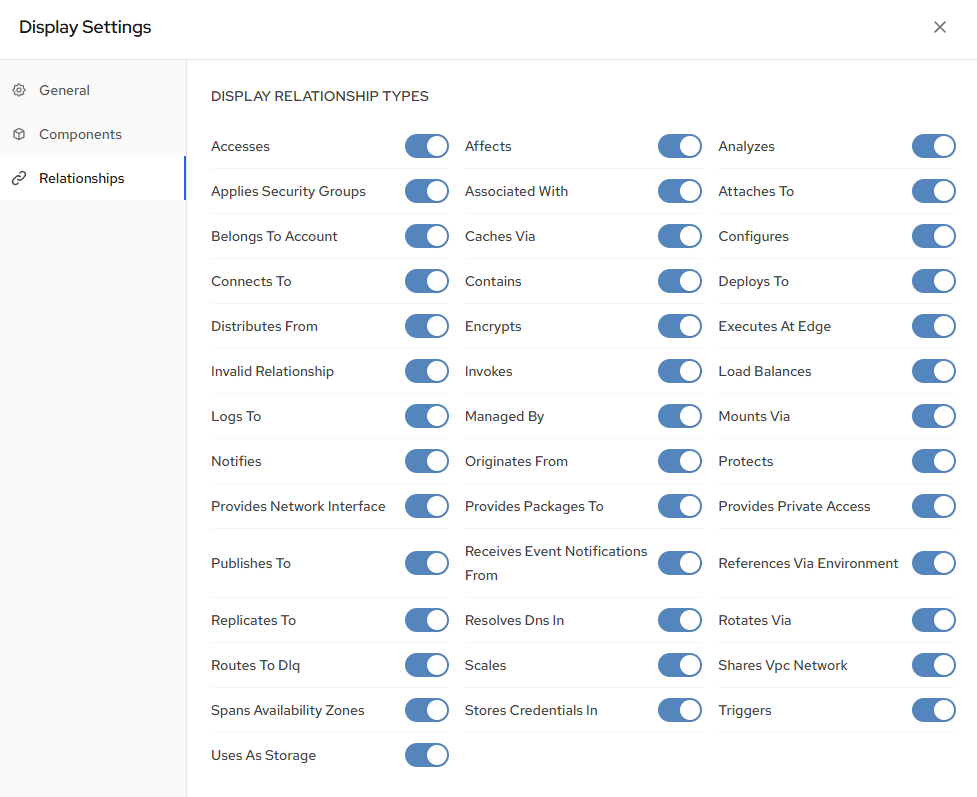
In the Relationships tab, you can manage which connection types are displayed between components.
- Toggle visibility for relationship types such as:
- Connects To
- Deploys To
- Load Balances
- Managed By
- Publishes To
- Triggers
- And many other interaction types.
- Hide less relevant relationship types to simplify complex diagrams.
- Surface specific interaction patterns to better understand dependencies and traffic flow.
Updated about 2 months ago