

Using Archie for Architecture Deliberation
Use Archie as an architectural advisor to think through a decision.
This guide walks through how to use Archie as an architectural advisor. Archie analyzes your workspace, investigates components, surfaces optimization opportunities, and helps you deliberate on decisions before committing them to a Plan. If you're new to Archie, start with Who is Archie? for an overview of what Archie is and where to find it.
Archie is not just a chatbot. It reasons through your architecture step by step, retrieves real data from your integrated environments, and asks clarifying questions to narrow in on what you actually need. The rest of this guide walks through a full Archie conversation using a real prompt so you can see how that plays out.
When to Use Archie
Archie is most useful when you need to think through an architectural question and want grounded answers based on your actual environment rather than general best practices. Common use cases include:
- Investigating utilization and cost: identifying under-used compute, storage, or databases that are candidates for right-sizing or consolidation.
- Exploring dependencies: understanding how components in your architecture relate to each other before making a change.
- Refining a blueprint: adding constraints, priorities, or technical considerations to an existing blueprint from the Edit with Archie option on the full blueprint page.
- Evaluating alternatives: comparing approaches for a specific architectural problem, such as whether to move a workload to a smaller instance type or a stop/start schedule.
- Understanding your own architecture: asking questions about what's deployed, where, and why, without having to manually navigate Stacks or the Architecture Inventory.
Archie complements the Blueprint engine. The engine produces structured, ROI-quantified blueprints at scale.
Example Prompt: Identify Under-Utilized Infrastructure
The rest of this guide walks through a full Archie conversation for the prompt:
Identify under-utilized infrastructure for optimization
This is a useful prompt to start with, and it demonstrates Archie's full workflow because it requires Archie to gather data from multiple component types, reason across them, and surface actionable next steps.
Step 1: Send Your Prompt
From any page in your workspace, click the Archie icon in the top-right header to open the chat interface. In the prompt field, type your question and submit. For today you can simply click "Identify under-utilized infrastructure for optimization"
You can also type @ in the prompt field to add specific architectural elements as context. This is useful when you want Archie to focus on a particular component, region, or system rather than your full architecture.
Step 2: Watch Archie Reason Through the Request
Once you submit, Archie works through the request in the open. You'll see each step of its reasoning as it happens, including which data sources it's querying and how long each step takes.
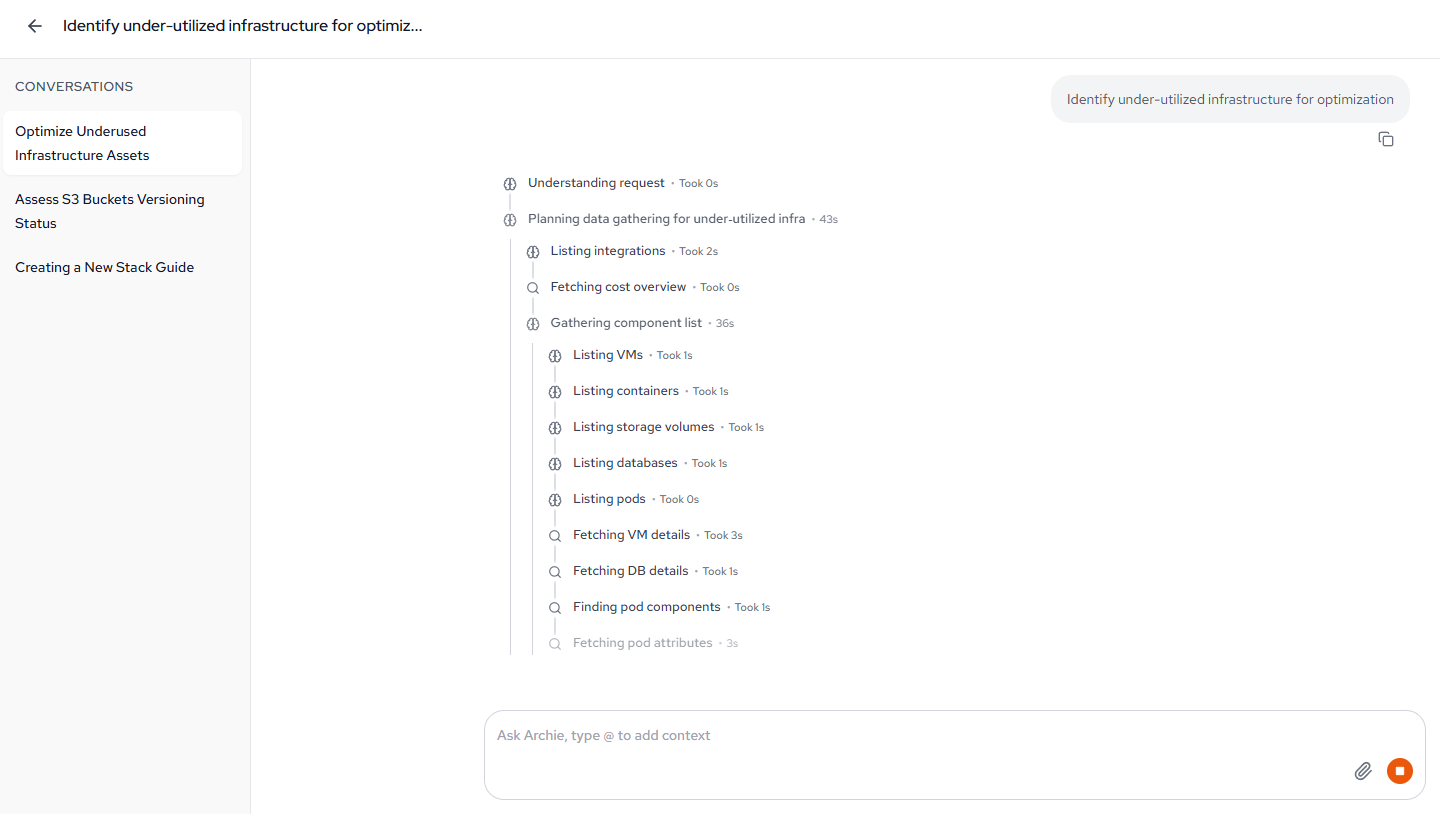
For the under-utilization prompt, Archie's reasoning typically includes:
- Understanding request: parsing what "under-utilized" means in the context of your architecture.
- Planning data gathering: identifying which component types to inspect (compute, databases, storage, containers).
- Listing integrations: confirming which of your integrations are available to pull from.
- Fetching cost overview: pulling a baseline of cost data across the environment.
- Gathering component list: listing VMs, containers, storage volumes, databases, and pods.
- Fetching component details: retrieving utilization metrics for each component type.
You can see exactly what Archie did and did not look at, which helps you evaluate whether its output reflects your full environment or only part of it. If an integration is missing or a component type isn't listed, you'll know why certain findings didn't surface.
Step 3: Review Archie's Findings
After Archie finishes reasoning, it returns its findings organized by component type. For the under-utilization prompt, Archie returned a breakdown starting with compute.
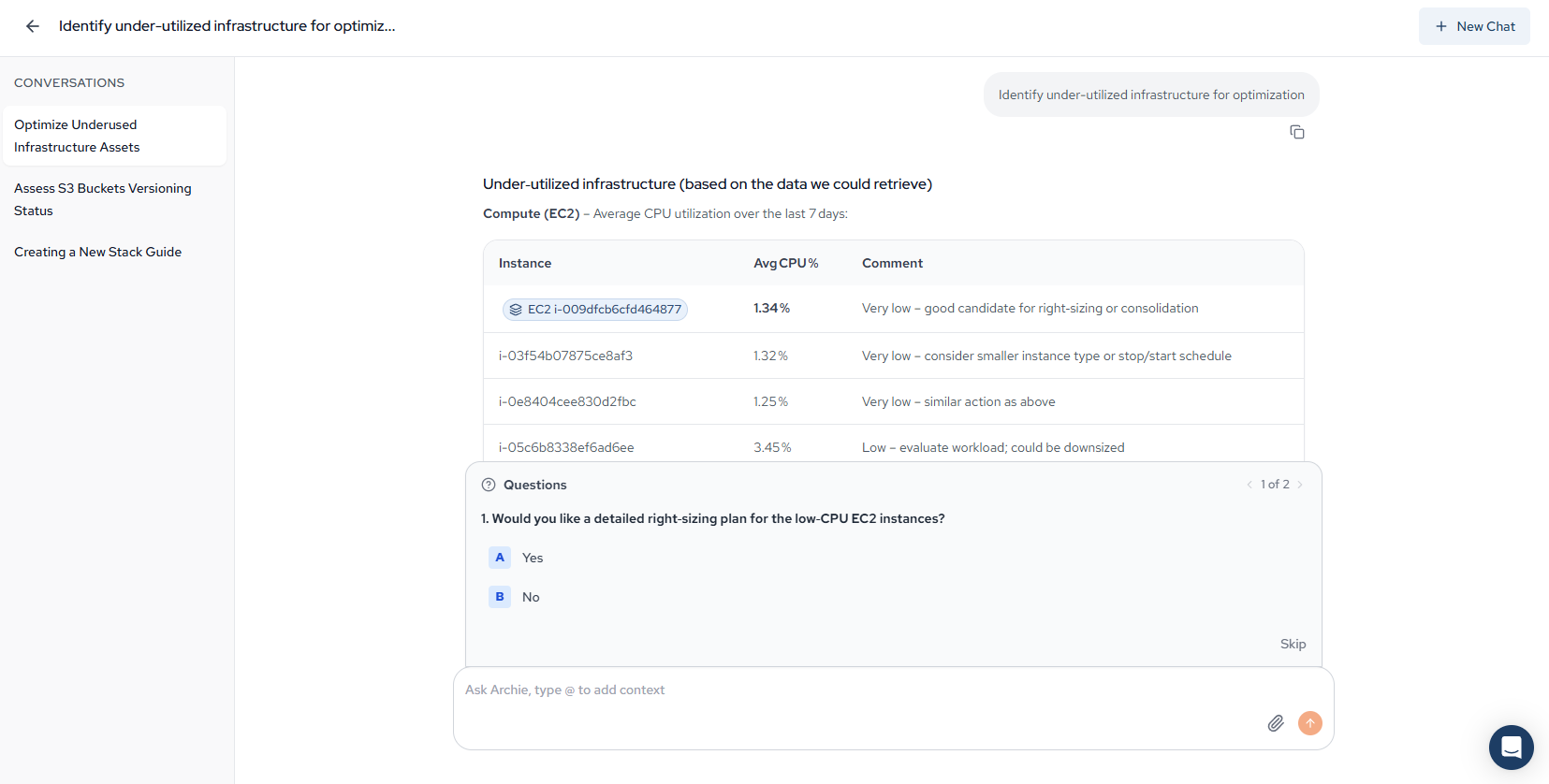
The output includes:
- A heading framing the findings (e.g., "Under-utilized infrastructure (based on the data we could retrieve)") that transparently scopes the answer to what Archie was able to access.
- Component-type sections (Compute, Databases, Storage, Containers) with a table of specific resources, their utilization metrics, and a short comment explaining whether the resource is a candidate for action.
- Inline component tags (e.g.,
EC2 i-009dfcb6cfd464877) that link back to the component's detail view in Stacks or the Architecture Inventory so you can investigate further without leaving the context of your conversation.
Archie grounds its findings in real data from your environment, so the utilization percentages and component IDs shown are pulled from your integrated metrics sources.
Step 4: Answer Archie's Follow-Up Questions
Alongside its findings, Archie presents follow-up questions designed to narrow the conversation toward a specific next action. These appear as multiple-choice prompts at the bottom of the response.

Each question is tied to a specific finding. In this example, the first question offers to build on the EC2 CPU findings, and the second offers to address a gap Archie identified during data gathering.
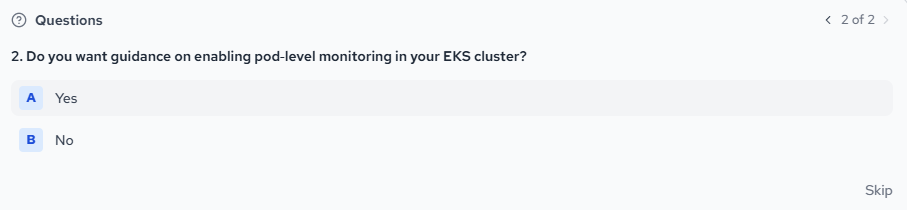
Select Yes to have Archie continue down that branch, No to move on, or Skip to dismiss the question set entirely.
Step 5: Act on the Summary
Archie closes by summarizing recommended next actions in a What to do next? list. Each item ties back to a specific finding from the conversation.
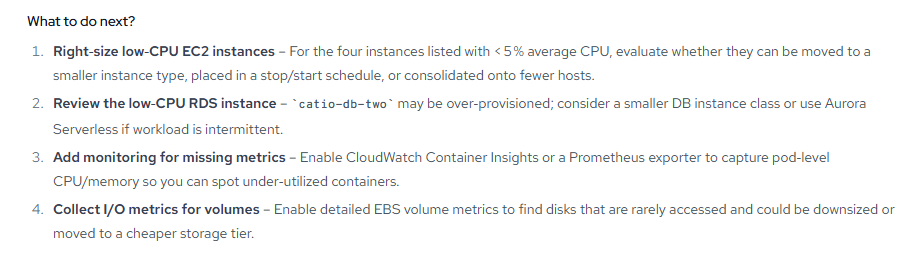
Step 6: Save the Blueprint
When Archie generates a blueprint during your conversation, it will ask if you want to save it. Saving moves the blueprint out of the chat and into your Blueprints tab, where it can be reviewed, refined, and added to a plan like any other blueprint.
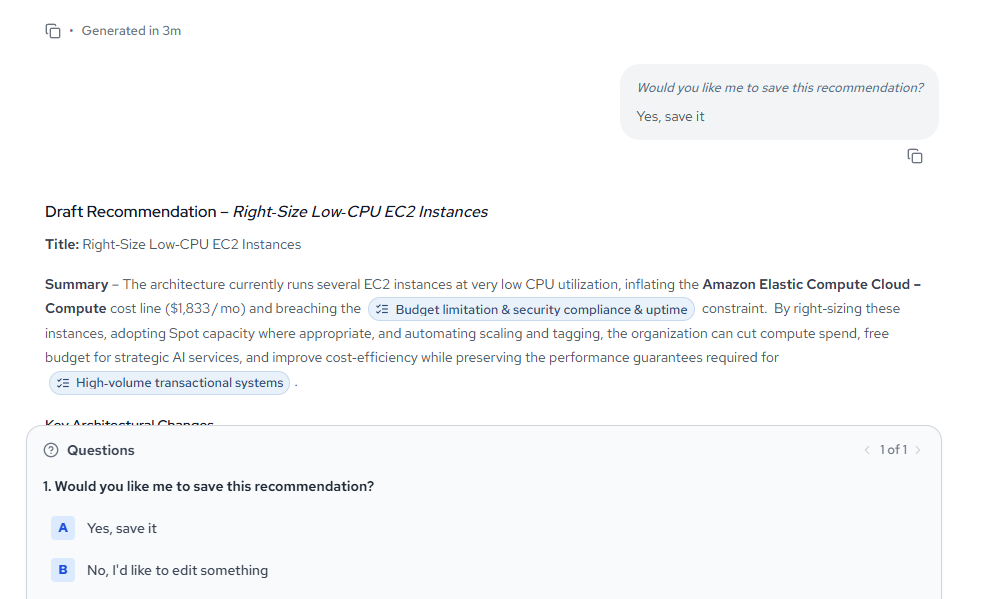
Select Yes, save it to save the blueprint, or No, I'd like to edit something to continue refining it with Archie before saving.
After saving, Archie confirms that the blueprint has been added to your workspace, tagging the context entries and components it addresses.
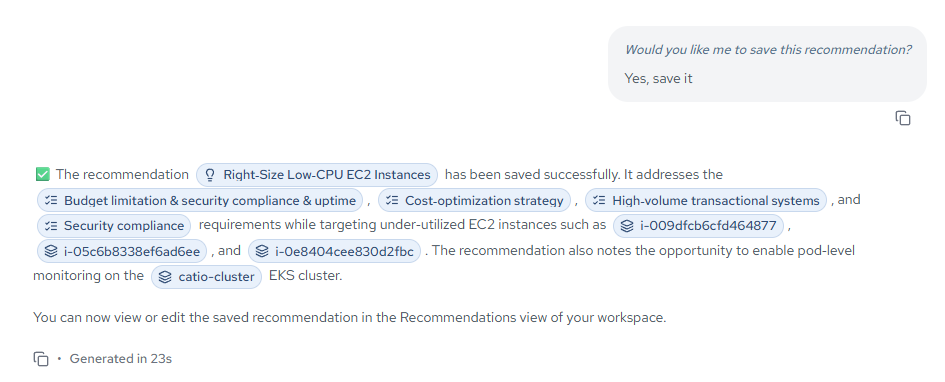
Step 7: Continue in the Blueprints Tab
Once saved, the blueprint appears in the Blueprints tab with the same structure as any other blueprint in your workspace, including ROI, Investment, and Complexity values.
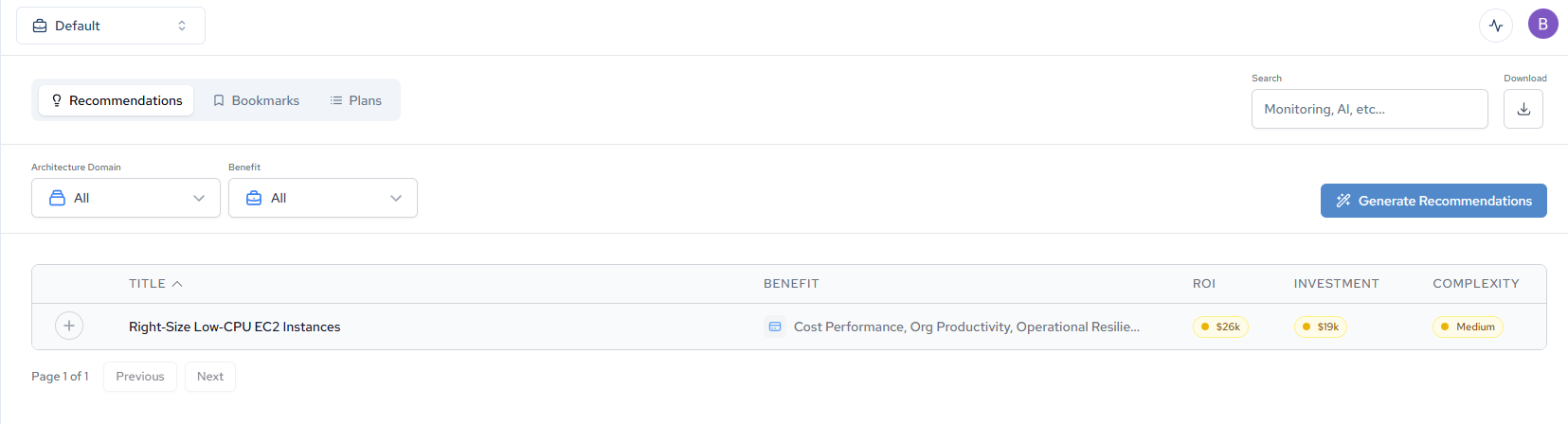
Click the blueprint to open the full blueprint page, where you can review the Summary, Target State, Gap Analysis, Implementation Plan, and other sections. From here you have two paths forward:
- Continue on your own: work through the full blueprint and add it to a plan when you're ready.
- Edit with Archie: click Edit with Archie in the top right to reopen the chat and refine the blueprint further. This is useful when priorities shift, new constraints surface, or you want to adjust scope before committing it to a plan.

Beyond the Walkthrough
The under-utilization prompt is one shape of an Archie conversation, but Archie handles a wider range of architectural questions than a single example can demonstrate. A few directions to explore from here:
Investigating dependencies before a change. Before deprecating a service, retiring an instance, or migrating a database, ask Archie what depends on it. For example, "What components depend on catio-db-two, and what would break if it were removed?" Archie traces the relationships in your workspace and surfaces both direct and indirect dependencies so you can scope the change accurately.
Comparing architectural alternatives. When you're weighing two approaches, ask Archie to compare them against your actual environment. For example, "Compare the cost and operational tradeoffs of moving catio-cluster workloads to Fargate versus keeping them on EC2-backed nodes." Archie grounds the comparison in your current utilization and cost data rather than generic guidance.
Refining existing blueprints. When a blueprint already exists but a priority has shifted, open the full blueprint and click Edit with Archie to adjust it in place. This is the fastest way to keep a blueprint aligned with current constraints without regenerating it from scratch.
Updated about 1 month ago