

How to Best Utilize Blueprints
Review, organize, and act on the blueprints Catio generates.
This guide walks through the end-to-end workflow for reviewing, refining, and organizing your blueprints into actionable plans.
If you haven't generated any blueprints yet, start with Recommendations. To add business context that improves blueprint quality, see Adding Context.
Step 1: Review Your Blueprints
Navigate to the Blueprints tab in the left sidebar. The page opens with a prompt where you can describe an objective to generate new blueprints, with your existing blueprints listed below across three tabs: Blueprints, Bookmarks, and Plans.
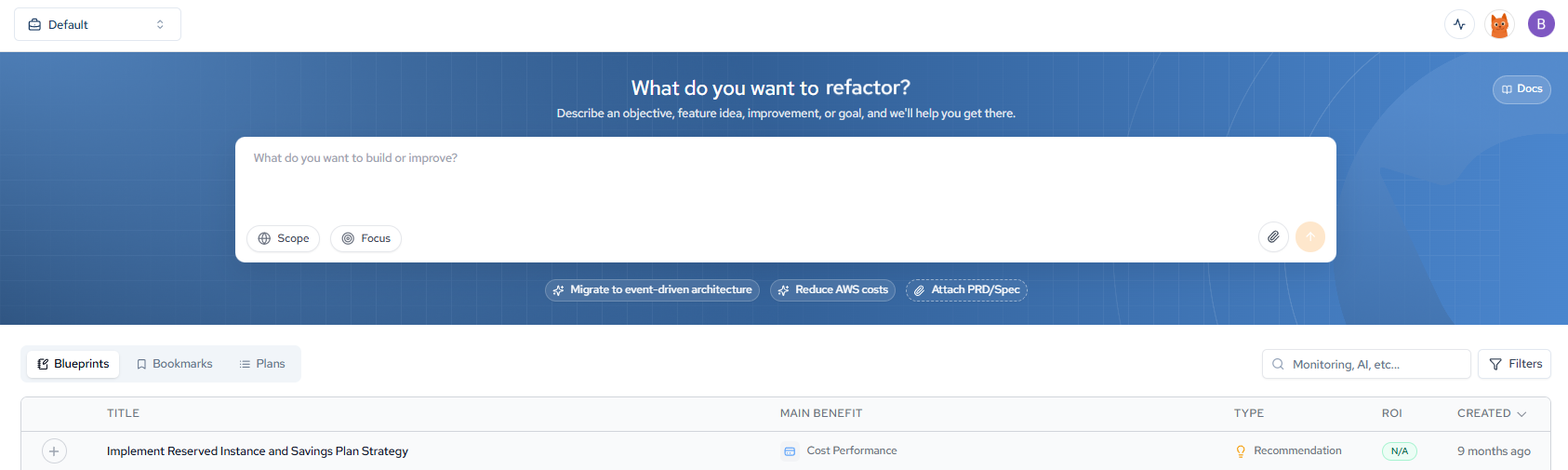
The Blueprints list displays each blueprint with its Title, Main Benefit, Type (Recommendation or Design), ROI, and Created date.
Filtering and Searching
Use the controls above the list to narrow it down:
- Search: Enter keywords in the search bar to locate blueprints by component or system name.
- Filters: Open the Filters panel to narrow blueprints by domain and benefit.
Previewing a Blueprint
Click any blueprint row to expand it and view a short description of what it addresses. Click View Full Blueprint to open the full detail page.

Step 2: Understand the Full Blueprint
The full blueprint page provides a structured breakdown of what needs to change, why, and how. Use the On this page navigation on the right side to jump between sections.
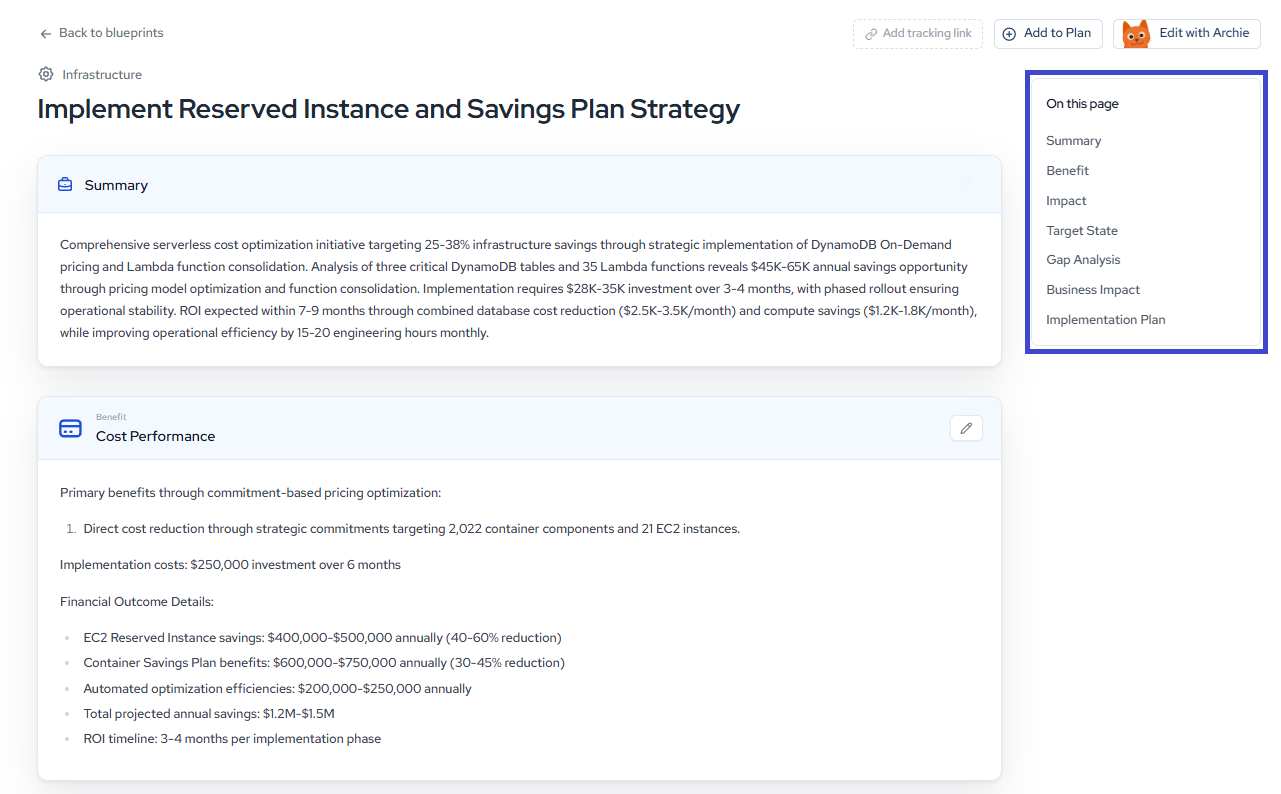
Each blueprint contains the following sections:
Summary
A high-level description of the blueprint, including what the current gap is and what the proposed improvement achieves.
Benefit
The primary benefit category (e.g., Org Productivity, Cost Performance, Security and Compliance) with a qualified description of the value and a table of quantified benefits where applicable. Each benefit entry includes a Benefit Category, Description, and Estimated Value.
Impact
An assessment of the business and operational impact if the blueprint is implemented or ignored.
Target State
The proposed end-state architecture. This includes a Solution Overview describing the recommended configuration and Key Architectural Changes listing the specific components being introduced or modified.
Gap Analysis
The delta between your current architecture and the proposed target state. This section identifies what is missing, misconfigured, or suboptimal, organized by Affected Components and Architecture Domain Coverage.
Business Impact
A breakdown of the expected financial and operational impact, including estimated ROI, investment cost, and benefit value.
Implementation Plan
A phased sequence of actions to move from your current state to the target state. Each phase specifies the services to deploy, configurations to apply, and the context entry it satisfies. Read the phases as a sequencing guide, not a runbook: validate each phase against your existing change management processes and sprint capacity before scheduling work.
Step 3: Refine with Archie
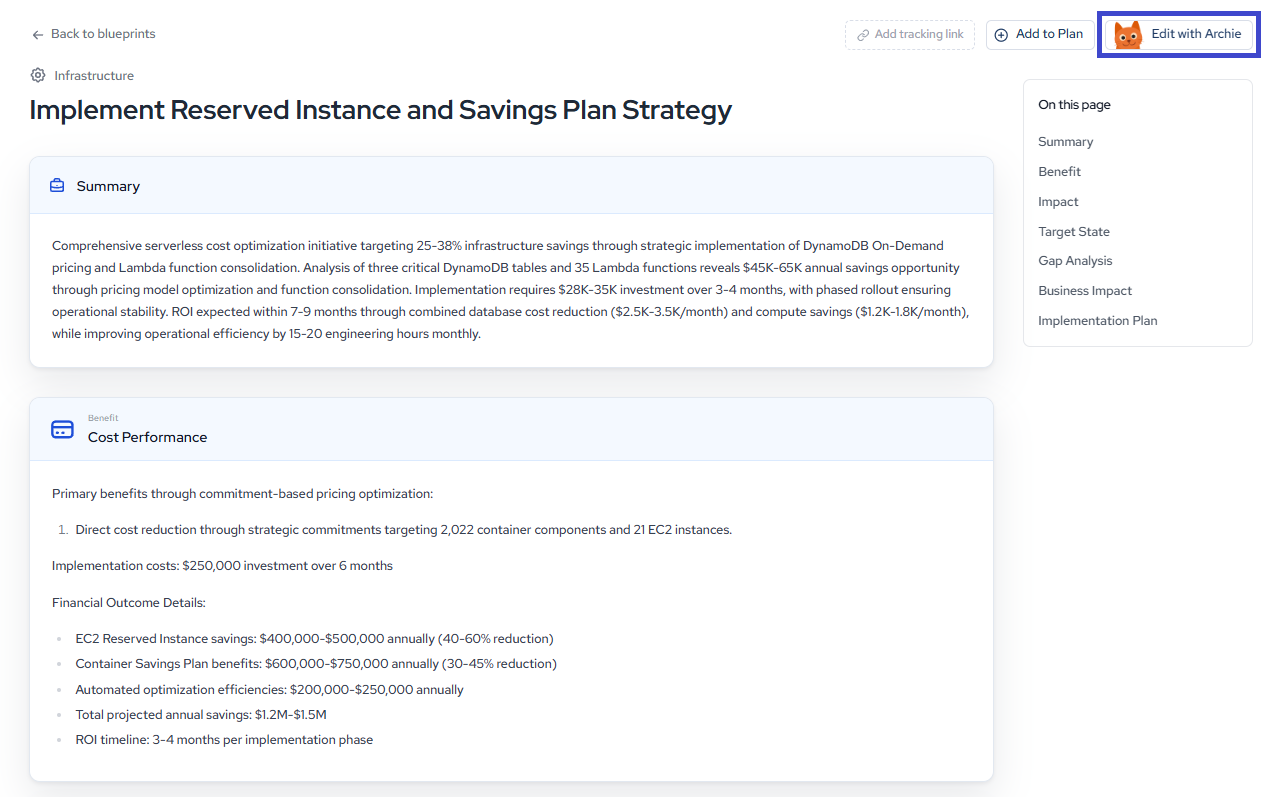
From any full blueprint page, click Edit with Archie in the top right to open Archie's chat interface. Archie can update the blueprint to account for additional constraints, priorities, or technical considerations you provide.
Type your refinement instructions in the prompt field.
Archie will revise the blueprint in place based on your input. You can also use the suggested prompts Archie provides, such as analyzing specific resource types or identifying optimization opportunities.
Step 4: Organize into Plans and Bookmarks
Once you've reviewed and refined your blueprints, organize them for execution.
Adding to a Plan
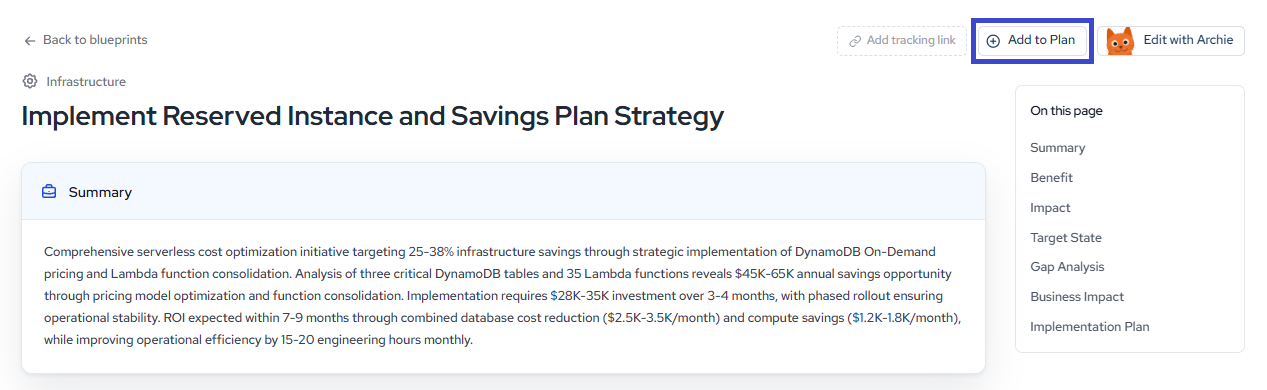
From the full blueprint page, click Add to Plan in the top right. A dropdown displays your existing plans and the option to select Bookmarks. Select the plan you want to add the blueprint to, then click Done.
If you haven't created a plan yet, see Building Plans for setting up AI-generated or manual plans.
Bookmarking
Select Bookmarks from the same Add to Plan dropdown to pin the blueprint for quick reference. Bookmarked blueprints are accessible from the Bookmarks tab in the Blueprints module.
Bookmarks and Plans function independently. Bookmarking a blueprint does not add it to a plan, and adding a blueprint to a plan does not bookmark it.
Step 5: Manage Your Plans
Once your blueprints are organized into plans, see Building Plans to manage, track progress on, and share your plans.
Putting It Together
Here's a typical workflow for a team using blueprints to drive architectural improvements:
- Generate blueprints based on your architecture and business context (see Recommendations).
- Review and filter the blueprint list by domain or benefit to focus on your current planning cycle.
- Open full blueprints to understand the target state, gap analysis, and implementation plan for each.
- Refine with Archie to adjust blueprints for your team's specific constraints and timelines.
- Organize into plans by adding relevant blueprints, then manage and track them in Building Plans.
Updated about 1 month ago