

Blueprints
Catio analyzes your architecture and business requirements through a multi-agent AI system to generate targeted blueprints.
A Blueprint is a structured architecture artifact generated by Catio. It describes a change from current state to target state, connects that change to relevant system and business context, explains the reasoning and impact behind it, and provides an implementation path.
Blueprints are the shared artifact layer for architecture guidance in Catio. They give teams a clear, reviewable way to move from architecture questions, goals, risks, requirements, and opportunities into decisions that can be reviewed, refined, organized, and executed.
A Blueprint may be created because Catio identified an improvement opportunity, or because you asked Catio to design a specific change. In both cases, the output is a Blueprint. The type determines how the Blueprint is framed.
Blueprints help teams:
- Align around a shared architecture direction
- Connect business goals to technical decisions
- Understand the gap between current state and target state
- Evaluate reasoning, tradeoffs, risk, ROI, and impact
- Turn architecture decisions into implementation plans
- Preserve the rationale behind important technical choices
- Organize related architecture work into audits, collections, and plans
- Carry decisions forward into execution with more confidence
For more information on each type of Blueprint see Recommendations and Designs.
A Blueprint is a pull request for your architecture
Engineers already trust a workflow for proposing and reviewing change. A pull request names a base state, proposes a diff, argues for the diff, and gives reviewers a structured way to push back before anything merges. A Blueprint does the same thing for architecture, at a larger grain:
- The base state is your architecture as it actually runs today, read from Stacks and your integrations.
- The diff is the Gap Analysis: what is missing, misconfigured, or no longer fits, stated as a specific delta rather than a vague complaint.
- The commit message is the Target State and its rationale: what you are proposing, and why it is the right change given your goals and constraints.
- The review happens in place, through Comments anchored to the section they concern, and through Archie, who can revise the blueprint directly.
- The merge is adding the blueprint to a Plan, the point where a proposal becomes committed work with an owner and a sequence.
This is also why a blueprint beats the two things most teams default to. A backlog of tickets tells you what to do but rarely why: the rationale and the trade-offs considered live outside the ticket, if they were written down at all. An architecture review meeting can produce a good decision, but the decision is only as durable as someone's notes, and it gets re-litigated the next time a related question comes up. A blueprint keeps the decision and its argument in one artifact, reviewable asynchronously, and generated against the same Context every time, so two blueprints reach for the same standards rather than two different opinions.
How It Works
Catio analyzes two primary inputs to generate blueprints:
- Stacks Module Data: Information about your current architecture and historical tech investments
- Workspace Context: Details about your business goals and constraints
Using these inputs, Catio employs a multi-agent AI system that represents both Architects and Employees as AI agents working together to generate highly personalized blueprints.
Types of Blueprints
Recommendation
A Recommendation is a system-identified improvement opportunity.
Use a Recommendation when Catio has found a change that may improve your architecture, reduce risk, reduce cost, improve performance, simplify the system, or better align the environment with your goals.
A Recommendation is persuasive in posture. It leads with the case for action.
Recommendations typically emphasize:
- The current gap, risk, or opportunity
- Why the change matters
- Expected benefit or ROI Impact of acting or not acting
- Suggested target state Implementation path
Example prompts:
Find opportunities to reduce AWS costs.
What architecture risks should we address before scaling this product?
Identify reliability improvements for our checkout flow.
Design
A Design is a user-initiated or user-committed architecture change request.
Use a Design when you already know what you want to build, migrate, modernize, or specify, and you want Catio to produce an execution-ready architecture artifact.
A Design is specifying in posture. It leads with the target solution and how to execute it.
Designs typically emphasize:
- Requirements
- Target architecture
- Alternatives considered
- Tradeoffs
- Technical and business impact
- Rollout and reversibility Implementation plan
- Handoff context for engineering or execution agents
Example prompts:
Design a migration from Cognito to Auth0.
Turn this PRD into an architecture design.
Spec out a payment processing system based on the attached requirements.
Generating a Blueprint
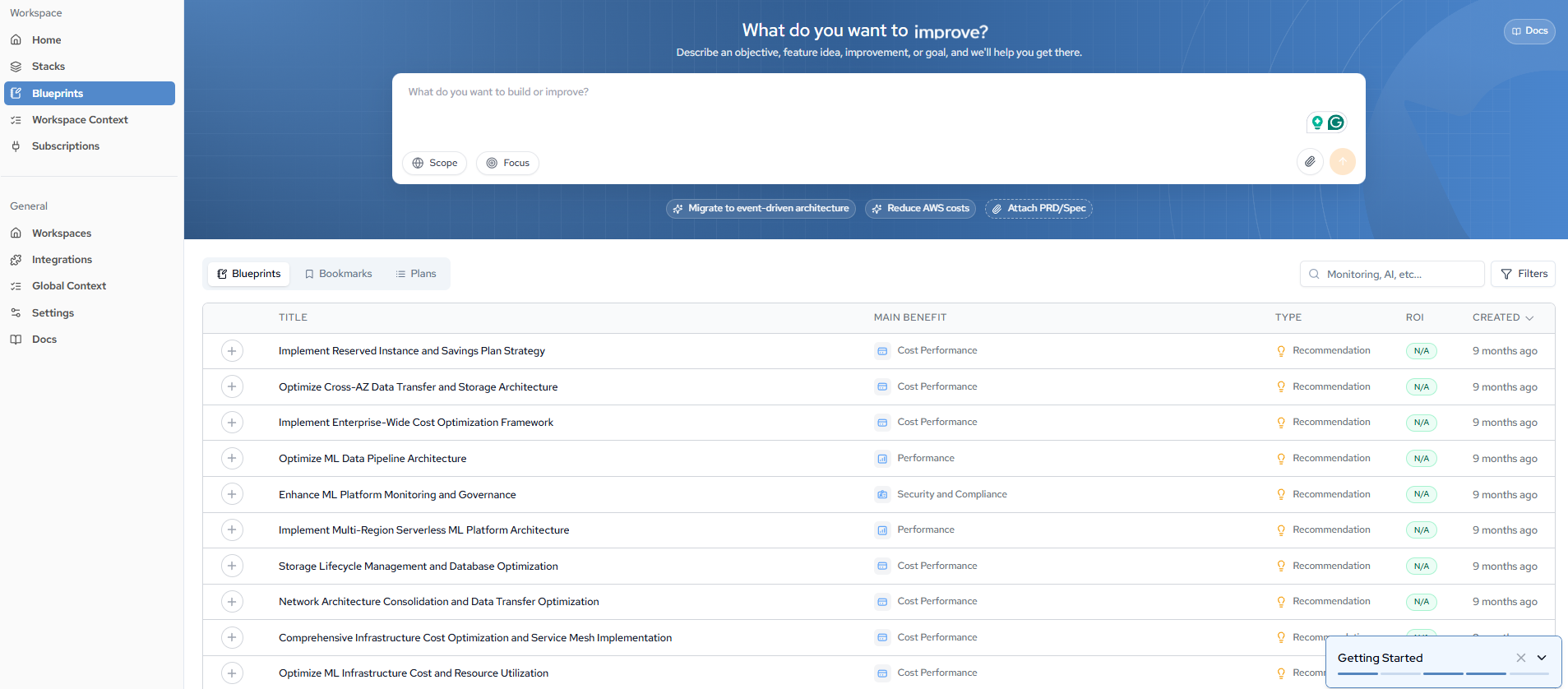
From the Blueprints page, describe what you want to build or improve in the prompt input. You can refine your request before submitting by adjusting:
- Scope: Defines the boundaries of the blueprint.
- Focus: Narrows the blueprint toward specific outcomes or areas.
Suggested prompts (e.g., Migrate to event-driven architecture, Reduce AWS costs, Attach PRD/Spec) are available as starting points.
-
In the input box, describe what you want to improve, optimize, or build. For best results, include priorities, constraints, timeframe, and business goals. File attachments can be included, which can be used to include requirements, a PRD or other additional context.
Example: "Improve our API security posture over the next quarter. Priority is reducing public-facing attack surface. Budget is limited to existing tooling."
-
Set the Scope to target a specific area or keep the default of Full Architecture.
-
Set the Focus to narrow by architecture domain or keep the default of All.
-
Click the submit button. An outline will be presented. If it looks good, click Generate Blueprint.
Archie will analyze your environment and generate targeted blueprints. Once complete, they will appear in the Blueprints tab where you can review, filter, and organize them. For a full walkthrough of what to do next, see How to Best Utilize Blueprints.
How prompt breadth decides what you get
The same input box produces either a single Blueprint or a whole Plan. What decides which is the breadth of the prompt.
- A feature-level prompt — one change, one service, one requirement — produces a targeted Blueprint. Example: "Add rate limiting to the public API gateway."
- A mandate-level prompt — an outcome spanning the workspace, usually with a timeframe and a constraint attached — is recognized as broad, and Catio generates a Plan: a structured set of targeted Blueprints organized against that goal. Example: "Reduce run-rate across the payments estate over two quarters, without degrading customer-facing latency."
Writing the mandate well is the highest-leverage part of the process, because the whole Plan is generated against it. State the goal, the priorities, the constraints, the timeframe, and the business objective, and attach the mandate memo, budget guidance, or PRD where one exists.
For the other two routes to a Plan, see Plans.
Browsing Blueprints
The Blueprints table displays all generated blueprints with the following columns:
- Title: The name of the blueprint.
- Main Benefit: The primary benefit category (e.g., Cost Performance, Performance, Security and Compliance).
- Type: The classification of the entry (e.g., Recommendation).
- ROI: Return on investment, where available.
- Created: When the blueprint was generated.
Expand any row to preview the blueprint's description, or click View Full Blueprint to open the full view.
Structure of a Blueprint
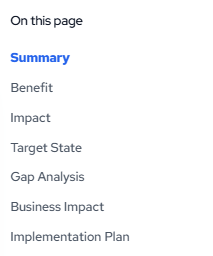
Every blueprint uses the same seven-part structure, whether it is a Recommendation or a Design. The sections are accessible from the On this page navigation:
- Summary: High-level overview of the blueprint and its purpose.
- Benefit: The primary advantage the blueprint delivers (e.g., cost performance, security and compliance).
- Impact: Expected outcomes and measurable effects of implementation.
- Target State: The optimal architecture state the blueprint moves you toward.
- Gap Analysis: Evaluation of the delta between your current architecture and the target state, including issues, limitations, and differences.
- Business Impact: Strategic and financial implications of the blueprint.
- Implementation Plan: Required actions and steps to move from the current to the target state.
Recommendations and Designs are types of blueprint rather than competing structures. Both carry all seven sections. What differs between them is where the substance sits, which is covered on each type's own page.
Blueprint Actions
From a full blueprint view, you can:

- Add tracking link: Attach an external link to track the blueprint's progress.
- Add to Plan: Add the blueprint to a list, such as Bookmarks or a custom Plan. You can create a new list directly from the modal.
- Edit with Archie: Refine the blueprint collaboratively with Archie, Catio's AI assistant.

Next
- Interpreting and Acting on Blueprints — reading a blueprint and deciding what to do with it.
- Plans — organizing accepted blueprints into a sequence.
Updated about 1 month ago
What’s Next
Now that you understand how blueprints work, a good next step is to read about the two types of blueprints, recommendations and designs.