

Managing Organizational Access Control
Govern who can see and change what across your organization.
This workflow uses Workspaces. Start there if that is unfamiliar.
Catio holds a live model of how your systems are built: inventory, diagrams, workspace context, and Blueprints. That model is one of the most sensitive artifacts your organization has. It describes your service boundaries, your data flows, your cost structure, and your unresolved risks, all in one queryable place.
Access control is how you decide who gets to see it.
This guide explains Catio's three access-control layers (user roles, workspace visibility, and teams), how they interact, and how to combine them into a structure that stays correct as your organization grows. It is written for admins and organization owners setting up access for the first time, or restructuring it after a reorg, an acquisition, or the arrival of an external partner.
PrerequisitesManaging users, roles, teams, and workspace access requires the Admin role. If you can open Settings → Users, you have what you need. You also need an existing Catio organization. See Setting up an Organization if you have not created one yet.
Why access control works this way
Most tools treat permissions as a single list: this person can do these things. Catio deliberately splits the problem in two, because architecture data has two independent risk dimensions.
The first is capability. An architect who can rewrite a workspace's context changes the inputs Catio reasons over, which changes every Blueprint generated afterward. A stakeholder who only needs to read a migration plan should not be able to do that. This is what roles govern.
The second is exposure. A workspace modeling your payments platform contains a different class of information than one modeling an internal tooling estate. Some of your organization should see the first; most of it probably should not. This is what workspace visibility governs.
Collapsing these into one control forces a bad trade-off. If permissions were purely role-based, you would either grant broad read access across the entire organization or invent a new role for every sensitive project. If visibility were the only control, anyone who could open a workspace could also edit it. Keeping the two separate lets you say "this person can write, but only in these three workspaces" without inventing anything.
Teams exist because the second dimension does not scale by hand. Adding eleven engineers to six private workspaces individually is sixty-six operations, and every one of them goes stale the moment someone changes roles. A team is a named group you maintain in one place, and workspace access follows it.
Why the split matters in practiceBecause Catio's model of your architecture feeds Blueprints, Archie, and anything you connect over MCP, the question "who can change this workspace's inputs?" and the question "who can read this workspace at all?" have different answers and different consequences. Keeping them as separate controls is what lets you answer both precisely.
Concepts you need first
If you are new to Catio, these terms appear throughout this guide.
| Term | What it means |
|---|---|
| Organization | Your company's tenant in Catio. Every user, team, and workspace belongs to exactly one organization. Created during organization setup. |
| Workspace | The container for a body of architecture work: its Architecture Inventory, diagrams, Workspace Context, and Blueprints. Workspaces are the unit of access scoping. |
| Workspace owner | The user who created the workspace. Shown in the Owner column of Settings → Workspaces. The owner cannot be removed from a private workspace's access list. |
| Team | A named, reusable group of users in your organization. Teams carry no permissions of their own; they exist to be granted workspace access as a unit. |
| Role | An organization-wide permission level assigned to a user: Admin, Member, Viewer, or Third Party Partner. |
| Workspace Context | Business and technical documents you upload to inform Catio's guidance, such as strategy, compliance policies, and budget constraints. Distinct from Global Context, which applies across all workspaces. |
The distinction between Workspace Context and Global Context matters for access control. Workspace Context lives inside a workspace and is scoped by that workspace's visibility. Global Context is organization-wide by design and is not scoped per workspace.
The three layers
Access in Catio is the intersection of three independent controls.
| Layer | Values | Scope | What it governs |
|---|---|---|---|
| Role | Admin, Member, Viewer, Third Party Partner | Organization-wide | What a person can do |
| Workspace visibility | Public, Private | Per workspace | What a person can see |
| Teams | Any group you define | Grants membership into private workspaces | How you keep visibility maintainable at scale |
The rule to keep in mind: a user's role bounds what they can do, and a workspace's visibility bounds what they can see. Both apply simultaneously, and an action succeeds only when both allow it. Teams are not a third permission dimension; they are a delivery mechanism for the second.
Where access control lives in the UI
Almost everything in this guide lives under Settings, which has five tabs. Workspace access can also be reached from the Workspaces page in the left nav, but Settings is the only place that shows the whole organization at once.
| Tab | What it controls |
|---|---|
| General | Organization name and logo. |
| Users | Org membership, roles, suspension, password resets. |
| Teams | Reusable user groups. |
| Workspaces | Org-wide workspace list with owner and visibility, plus per-workspace access editing. |
| Billing | Currently disabled. |
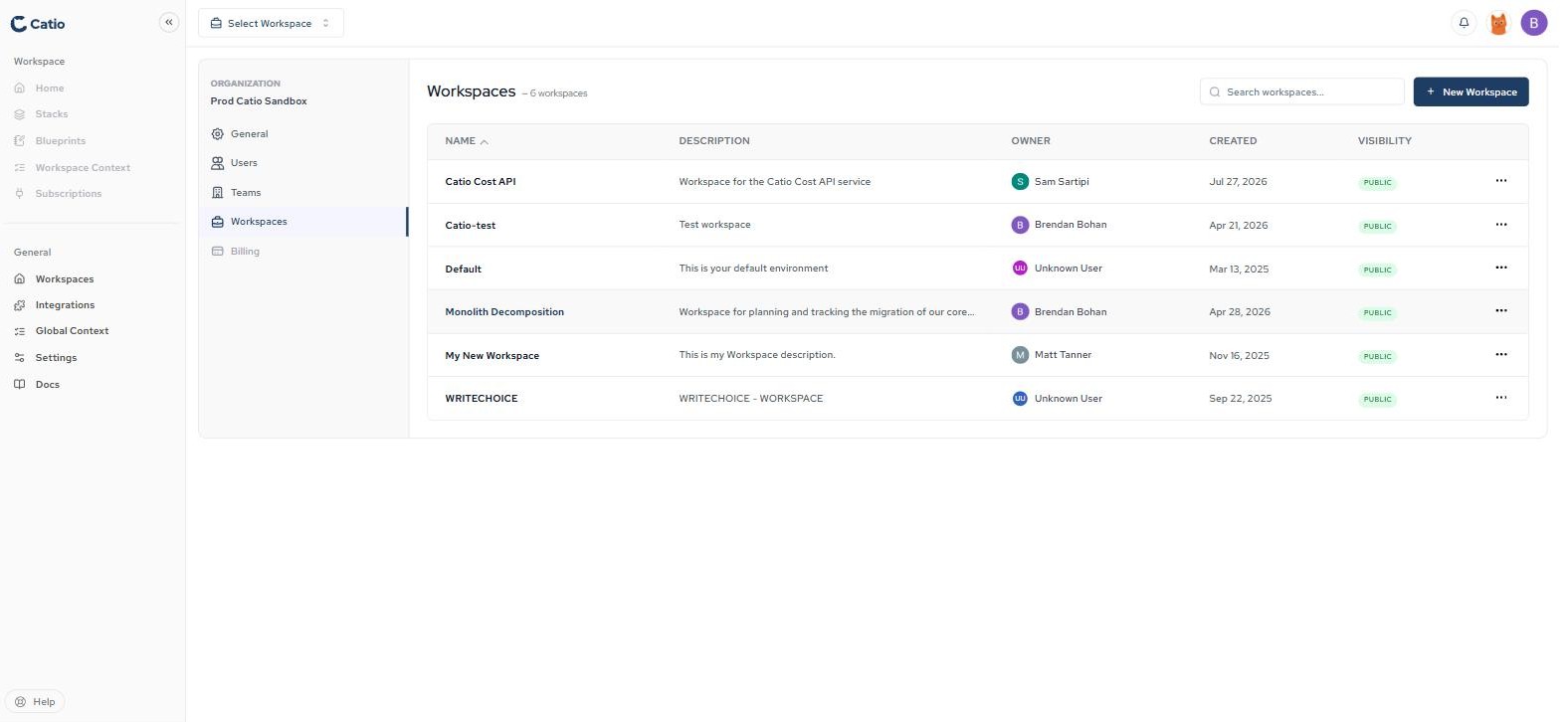
Settings → Workspaces is the access audit viewThe Workspaces tab shows every workspace in the organization with its Owner and Visibility in one table. This is the fastest way to answer "which of our workspaces are public?" The workspace switcher in the top bar will not tell you, because it only lists workspaces you personally belong to.
Layer 1: User roles
Roles are assigned per user under Settings → Users and apply organization-wide. A user has the same role in every workspace they can reach.
The page header reads User Management with a live count of users in your organization. The table lists User, Email, and Status. Use the All teams dropdown to filter by team, or Search by name or email.
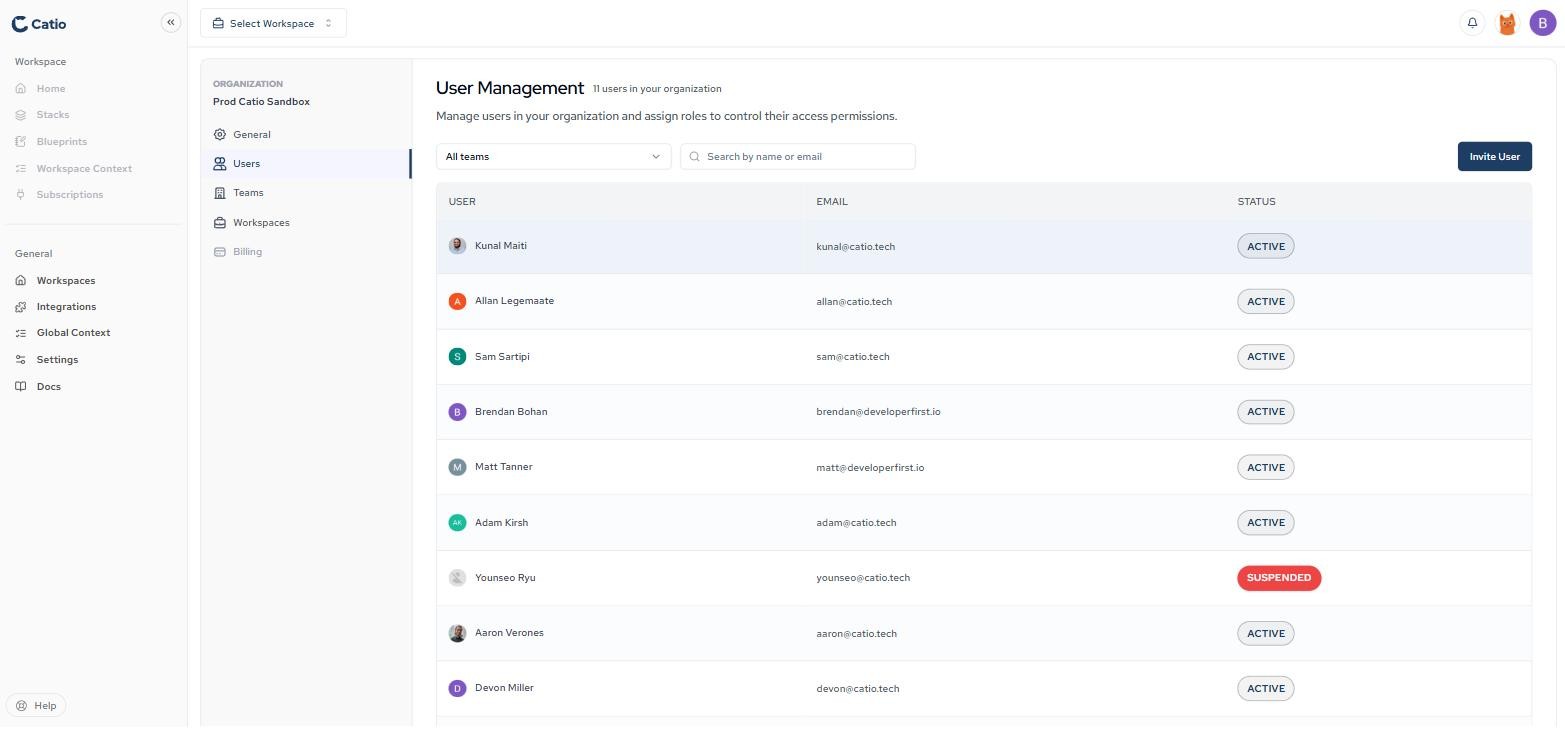
Catio supports four roles.
| Role | Access | Typical holder |
|---|---|---|
| Admin | Full control, including user management and tenant settings. | Platform leads, org owners, the people responsible for Catio itself. |
| Member | Read and write access to everything. No access to user roles, organization settings, or inviting members. | Architects and engineers doing day-to-day architecture work. |
| Viewer | Read-only access. | Executives, adjacent teams, auditors who need to read but never change. |
| Third Party Partner | Same access as Member, except no access to the Context module. | Consultancies, MSPs, and external partners working inside your architecture. |
What each role can do
| Capability | Admin | Member | Viewer | Third Party Partner |
|---|---|---|---|---|
| Read architecture inventory and diagrams | ✅ | ✅ | ✅ | ✅ |
| Read Blueprints and Plans | ✅ | ✅ | ✅ | ✅ |
| Create and edit workspaces | ✅ | ✅ | ❌ | ✅ |
| Generate Blueprints | ✅ | ✅ | ❌ | ✅ |
| Read and write Workspace Context | ✅ | ✅ | ❌ | ❌ |
| Invite users | ✅ | ❌ | ❌ | ❌ |
| Assign or change user roles | ✅ | ❌ | ❌ | ❌ |
| Suspend users and reset passwords | ✅ | ❌ | ❌ | ❌ |
| Create and manage teams | ✅ | ❌ | ❌ | ❌ |
| Change organization settings | ✅ | ❌ | ❌ | ❌ |
Why Third Party Partner excludes Context
This is the one role boundary that looks arbitrary until you know what Context holds.
Workspace Context is where your organization uploads its strategy documents, compliance policies, budget constraints, procurement rules, and product roadmap, categorized across Business, Finance, Security, Legal, HR, and more. It is the layer that makes Catio's recommendations specific to you rather than generic.
An external partner needs to see your architecture to advise on it. They do not need to see your quarterly budget ceiling or your unreleased roadmap. Excluding Context from the Third Party Partner role means a consultancy can work productively inside your inventory and Blueprints without reading the commercial and legal material that shaped them.
Third Party Partner is not a read-only roleThird Party Partner carries Member-level write access everywhere except Context. If you need a genuinely restricted external reviewer, use Viewer instead, and add them only to the specific private workspaces they should see. Viewer plus a narrow private-workspace list is the tightest configuration Catio offers.
Changing a user's role
- Go to Settings → Users.
- Click the user's row.
- In the Edit User modal, select a role from the Role dropdown. A one-line description of the selected role appears directly beneath it.
- Click Save Changes.
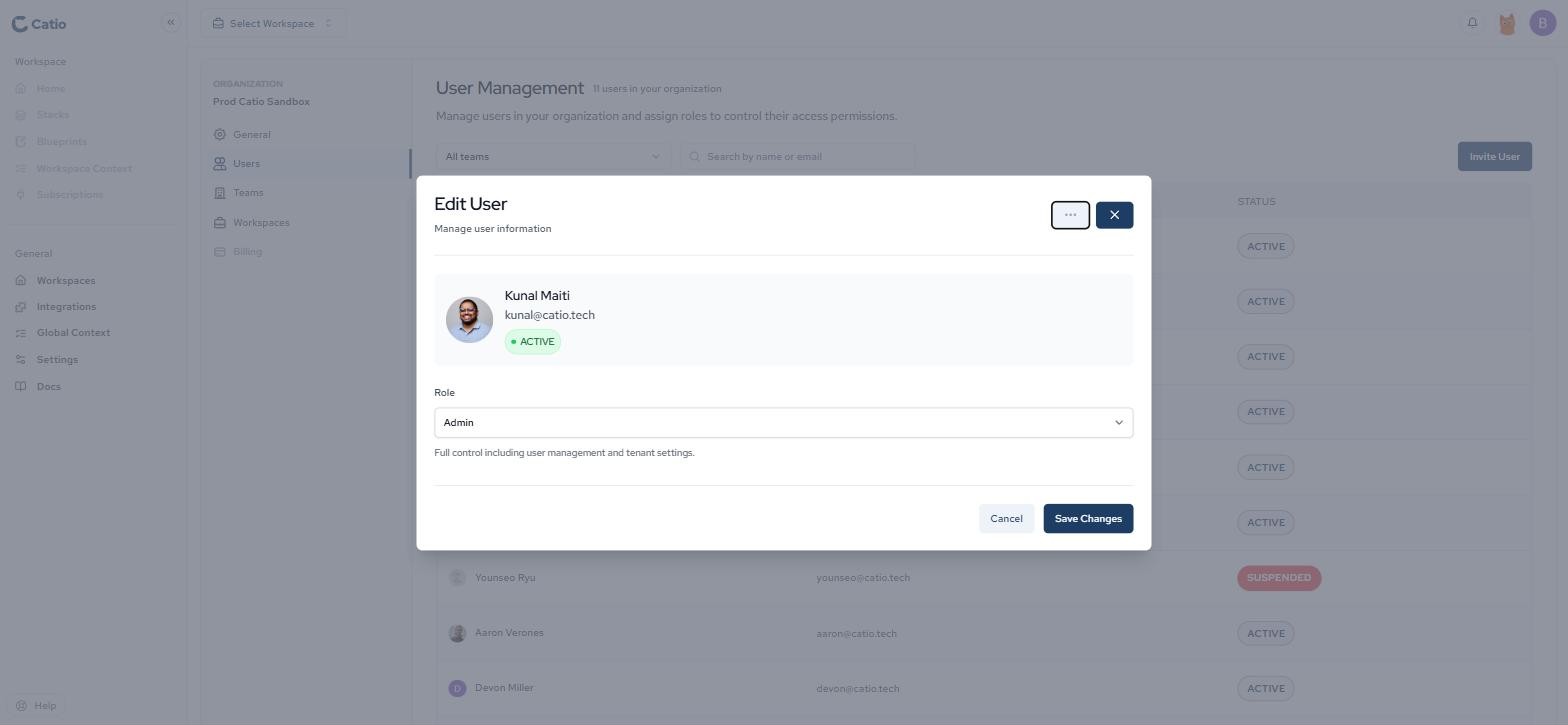
Changing a role does not change which workspaces the user belongs to.
Suspending a user and resetting passwords
The Edit User modal has an overflow (...) menu in its top-right corner with two additional actions:
- Reset Password triggers a password reset for that user.
- Suspend User revokes the user's access to the organization.
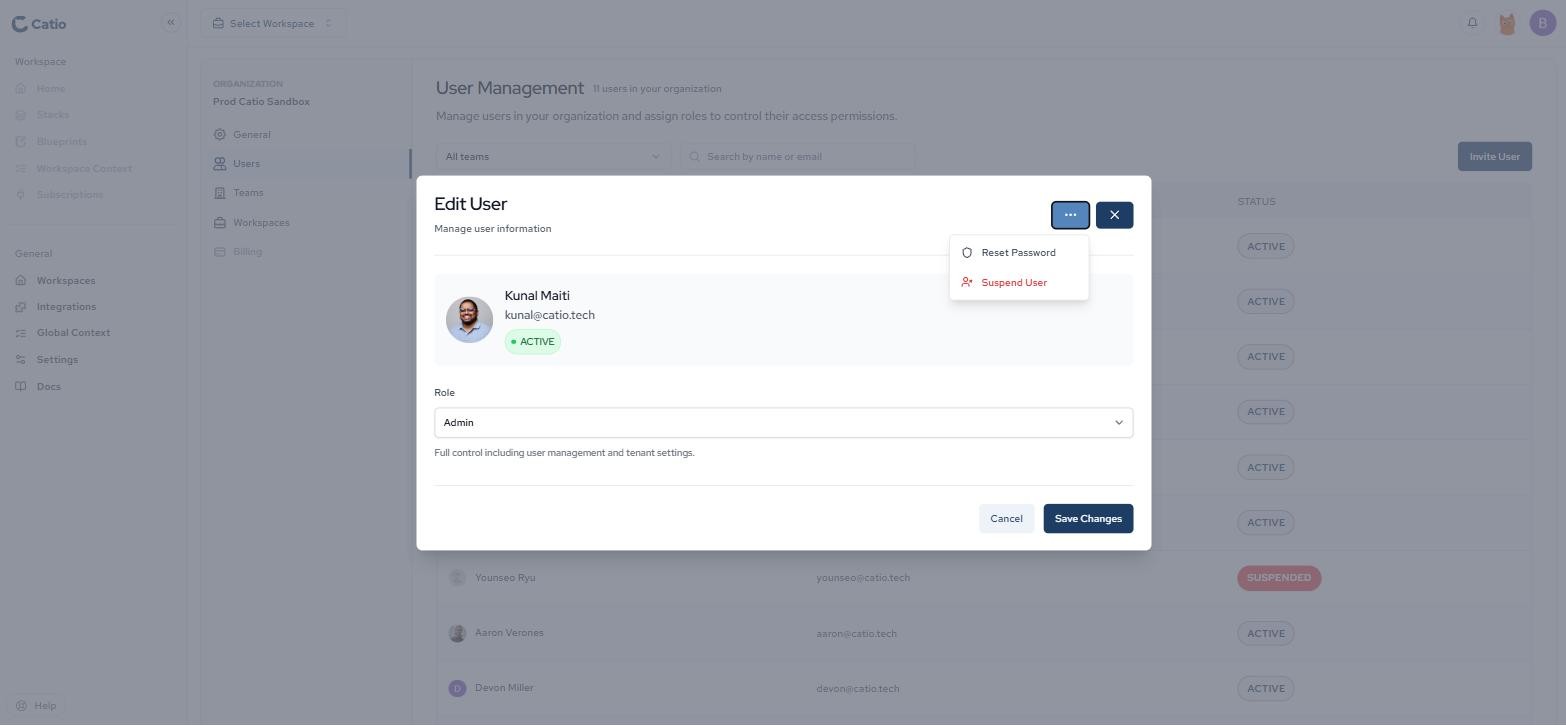
Suspended users show a red SUSPENDED badge in the Status column and do not appear in the member picker when you create a team.
Suspension is how you offboardThere is no "delete user" action. Suspend User is the offboarding path. It revokes access while preserving the user record, so attribution on existing Blueprints and context remains intact. Suspend first, then sweep their individual workspace memberships if you need a clean audit trail.
Layer 2: Workspace visibility
Every workspace is either public or private.
Public workspace. Everyone in the organization has access. Anyone in this organization will be able to see and access this workspace.
Private workspace. Access is limited to the specific people and teams on its access list. The workspace does not appear in anyone else's workspace switcher. Admins are the exception: Settings → Workspaces lists every workspace in the organization by name, owner, and visibility regardless of membership, so that access can be administered.
Workspace visibility is the primary control for scoping architecture data. Because a workspace's inventory, diagrams, context, and Blueprints are contained within it, making a workspace private keeps all of that data visible only to the people and teams assigned to it.
Setting access on a new workspace
Workspace creation is a six-step flow. Access is Step 2, immediately after naming.
- From Settings → Workspaces, click + New Workspace, or start a workspace from the Workspaces page in the left nav.
- Step 1 of 6. Enter a Workspace name and Brief description. Both are required. Click Continue.
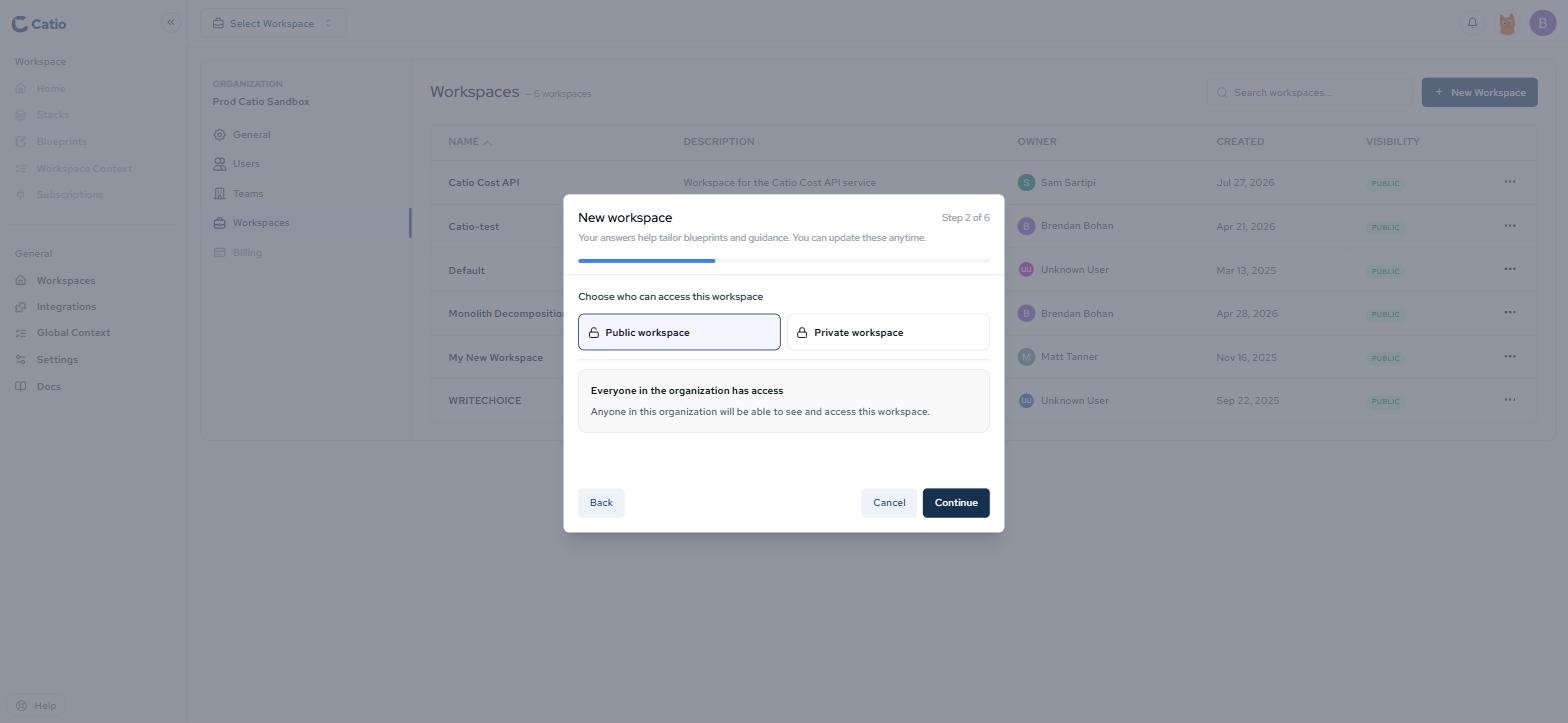
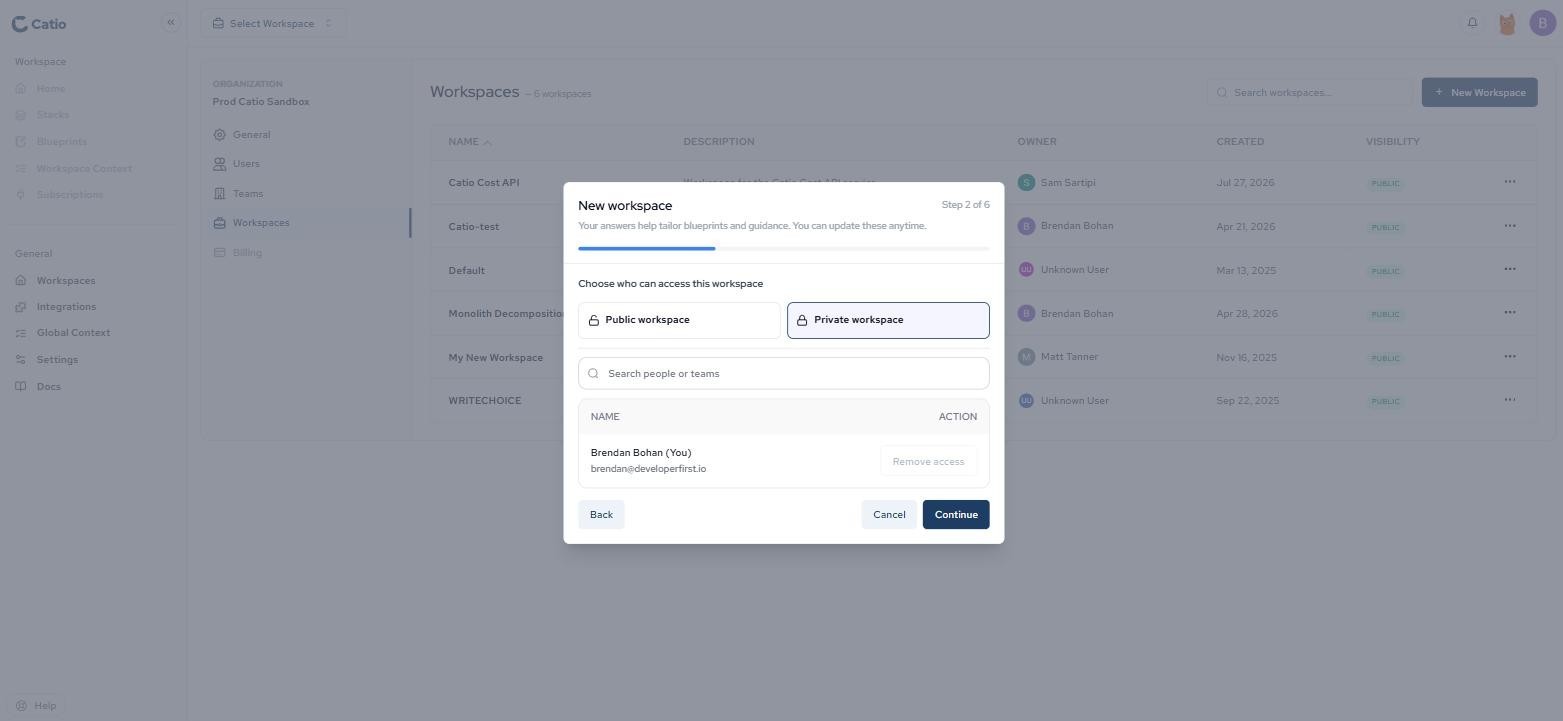
- Step 2 of 6. Under Choose who can access this workspace, select Public workspace or Private workspace, then click Continue.
- Steps 3 to 6 capture the primary objectives, in-scope systems, and constraints that Catio uses to tailor Blueprints and guidance to this workspace. As the modal notes, you can update these answers at any time. See Create a Workspace for what each of those steps asks for.
Selecting Private workspace reveals a Search people or teams field and a member table. You are listed automatically as the creator, and your Remove access button is disabled, because the creator becomes the workspace owner and cannot be removed.
New workspaces default to PublicPublic workspace is pre-selected on Step 2. If you click straight through the wizard, the workspace is readable by everyone in the organization. Set visibility deliberately at creation time. A workspace that starts public and is later made private was, for that window, readable org-wide, including any inventory syncs or Blueprints generated during it. Catio does not retroactively conceal what people already saw.
Changing access on an existing workspace
The fastest route is the org-wide workspace table.
- Go to Settings → Workspaces.
- Click the ... menu at the end of the workspace's row.
- Select Edit Workspace Access.
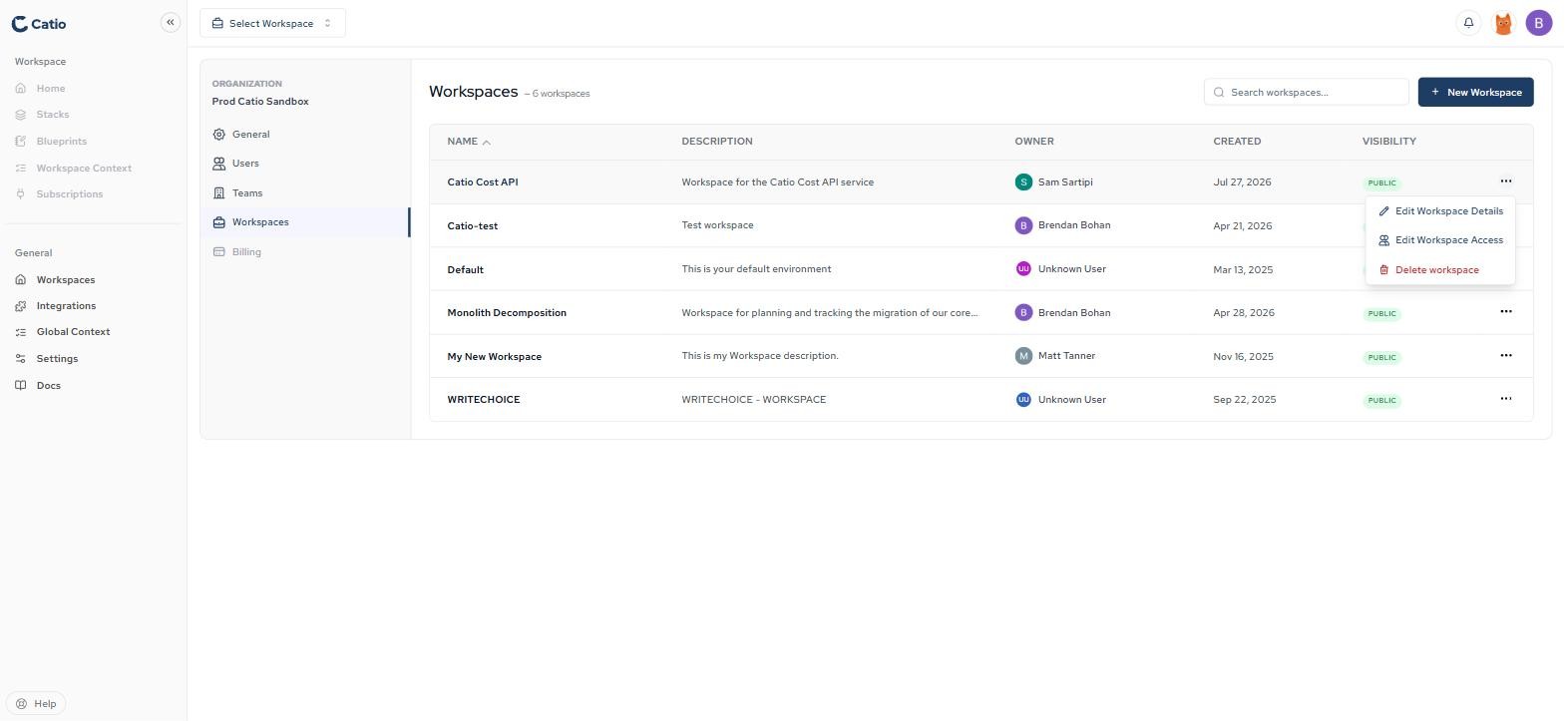
The Edit workspace access modal opens directly on the access control, so you do not have to walk the whole wizard.
- Choose Public workspace or Private workspace.
- In private mode, use Search people or teams to add members.
- The member table lists each entry with a Remove access action.
- Click Save, or Cancel to discard.
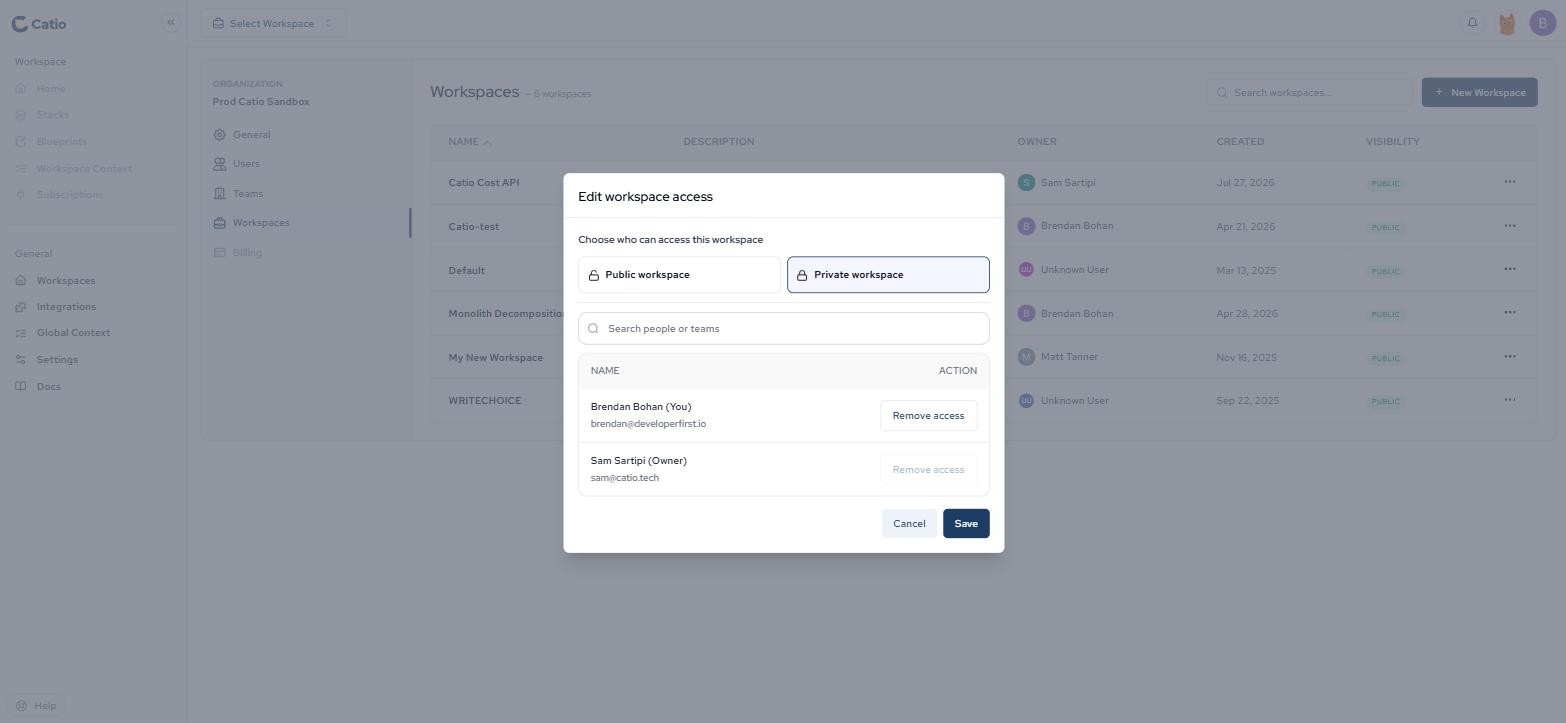
The owner cannot be removedIn the member table, the workspace owner is labelled (Owner) and their Remove access button is disabled. Every private workspace therefore always has at least one person who can reach it. There is no in-product ownership transfer, so if the owner leaves the company you will need to recreate the workspace under a new owner, or contact Support.
Edit Workspace Access is the only route that goes straight to the access list. The neighbouring Edit Workspace Details option opens a separate five-step editor for the workspace's name, subject company, objectives, and constraints. Its Step 2 is Subject company, not access, so do not go looking for the access control there.
Layer 3: Teams
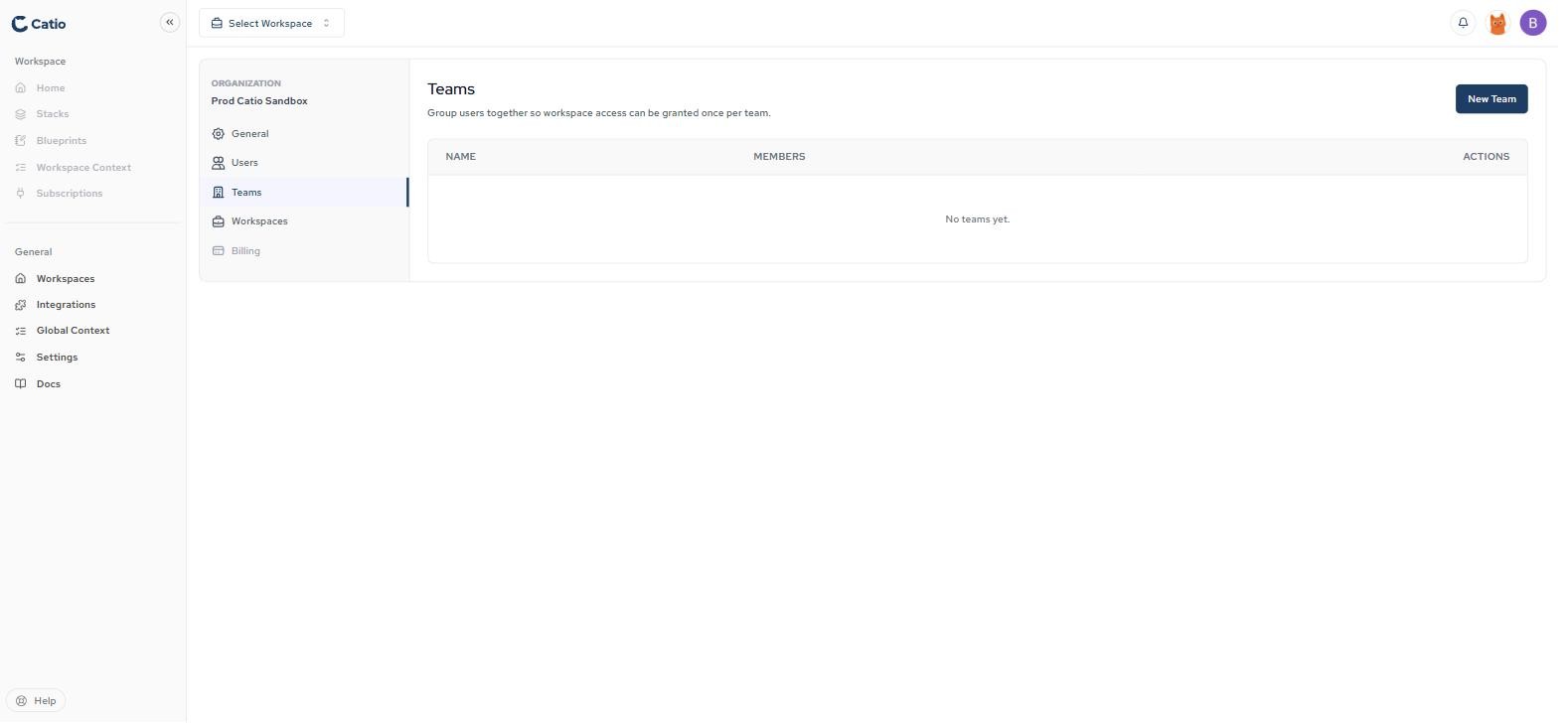
Teams, created under Settings → Teams, group users so that workspace access can be granted once per team rather than per individual user. The table lists each team's Name, Members, and Actions. A new organization shows No teams yet.
Creating a team
- Click New Team in the top right.
- In the Create Team modal, enter a Team name.
- Under Members, use Search members or check the box next to each user you'd like to add.
- Click Create Team.
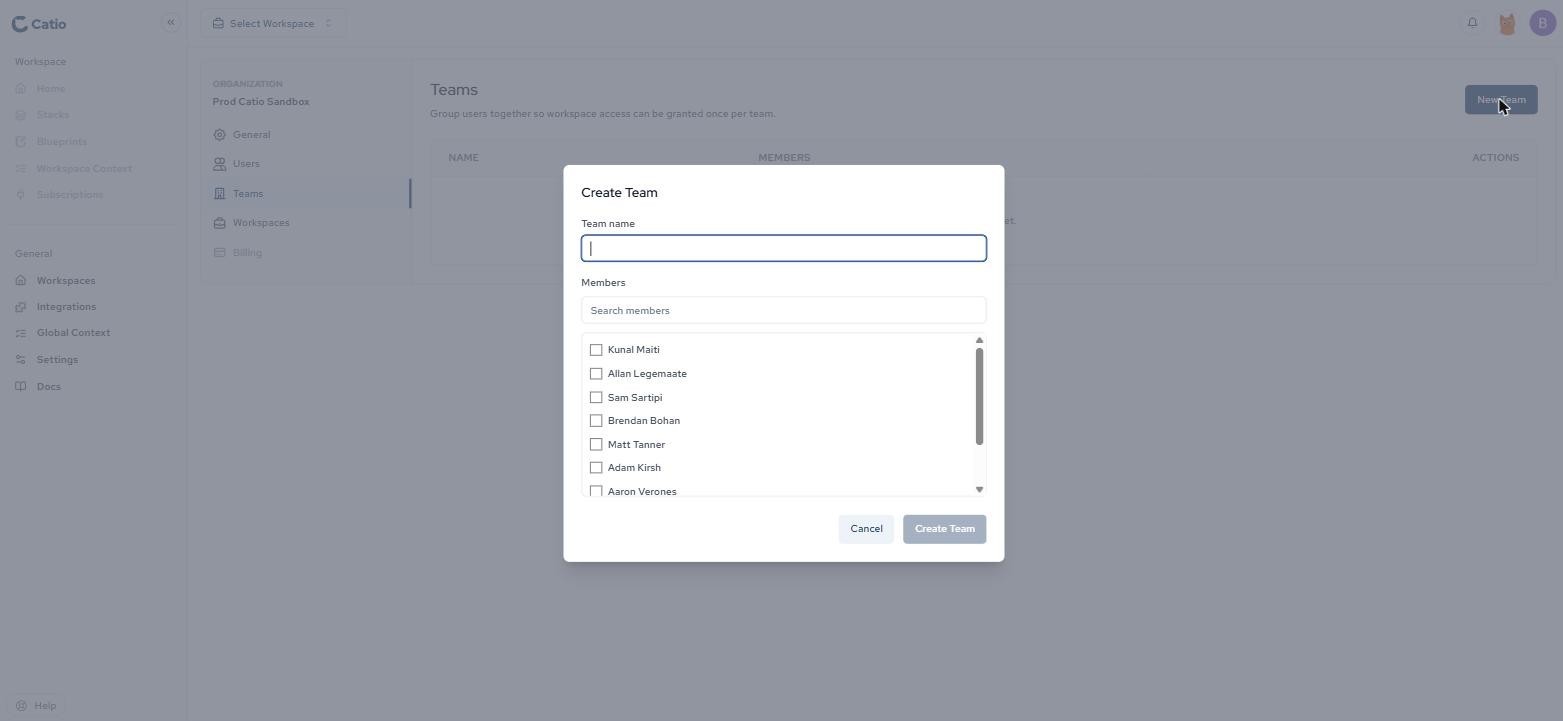
Once created, the team appears in the Teams list and can be assigned to private workspaces.
Teams also serve a secondary purpose: the All teams dropdown on the Users page filters the user list by team, which makes auditing "who is on the platform team" a two-click operation rather than a spreadsheet exercise.
Teams carry no permissions of their ownAdding someone to a team does not grant them a role. It grants them membership in every private workspace that team has been added to, at whatever role they already hold. A Viewer on the Platform team gets read access to the Platform team's workspaces, not write access.
Suspended users do not appear in the Create Team member picker.
How teams map to workspaces
- A public workspace needs no mapping, because the whole organization already has access.
- A private workspace's access list is the union of the individual users added to it and the members of any teams added to it.
- A team can be attached to many workspaces, and a workspace can include many teams plus individual users.
- Changing a team's membership cascades to every private workspace that team is attached to.
- The workspace owner is always on the list and cannot be removed.
That cascade rule is the point of teams. When someone moves from Platform Engineering to Security, you edit one team membership rather than auditing three workspaces by hand.
Confirm cascade behavior before you rely on itThe union and cascade rules above follow from how the product presents teams: a single Search people or teams picker, and a Teams page whose stated purpose is granting workspace access once per team. Before you build an access model that depends on cascade, verify it in your own organization. Create a team, attach it to a private workspace, then add and remove a member and confirm their access changes as expected.
How roles and workspace access combine
Role permissions and workspace access are enforced together. An action succeeds only when the user has both:
- the role-based permission for that action, and
- access to the workspace the action targets.
| Public workspace | Private workspace, on the access list | Private workspace, not on the list | |
|---|---|---|---|
| Admin | Full control | Full control | Can administer it, not open it |
| Member | Read + write | Read + write | Cannot see it |
| Viewer | Read only | Read only | Cannot see it |
| Third Party Partner | Read + write, no Context | Read + write, no Context | Cannot see it |
A few consequences:
- A Viewer added to a private workspace can open and read it, but cannot edit anything in it. The role still limits them to read-only.
- A Member who is not on a private workspace's access list cannot see or open that workspace at all, regardless of their write permissions elsewhere.
- An Admin is not automatically added to every private workspace's access list. Admins can see every workspace's name, owner, and visibility in Settings → Workspaces and can edit any access list from there, but a private workspace they are not a member of does not appear in their workspace switcher. If you need an Admin to work inside a private workspace, add them to it explicitly rather than relying on the role.
- Granting someone workspace access does not change their role, and changing someone's role does not change which workspaces they can see.
If an action is unexpectedly blocked, check both dimensions: the user's role, and their access to the specific workspace.
What happens behind the scenes
Understanding where enforcement lives helps when you are debugging access or answering a security review.
The Catio MCP inherits your console permissions exactly. When you connect Catio to Claude Code, Cursor, or another MCP client, each connection is scoped to a single workspace, the one you selected during the OAuth login flow. Access is limited to workspaces you are already a member of, and no additional permissions are granted beyond what you have in the console. Connecting an AI coding agent to Catio therefore does not widen what that agent can reach. To work across multiple workspaces, add Catio as a separate named server for each. See Workspace Scoping.
Archie is scoped twice over. Archie can only reference architecture data from a workspace you have selected and can access. Without an active workspace, Archie functions as a general assistant but cannot reference your specific architecture. Separately, Archie conversations are scoped to individual users, so your conversation history is private to you and specific to each workspace you work in. Two people in the same private workspace do not see each other's Archie threads.
Global Context is organization-wide by design. Unlike Workspace Context, Global Context applies across every workspace and is not partitioned by workspace visibility.
Global Context is not scoped by workspaceIf a compliance document should only be visible to your Security team, it belongs in the Workspace Context of a private workspace, not in Global Context. Global Context reaches every workspace in the organization.
A typical setup order
1. Invite users
Go to Settings → Users and click Invite User. The modal asks for an Email Address and a User Type, which is the role the person will hold once they accept. Click Send Invitation.
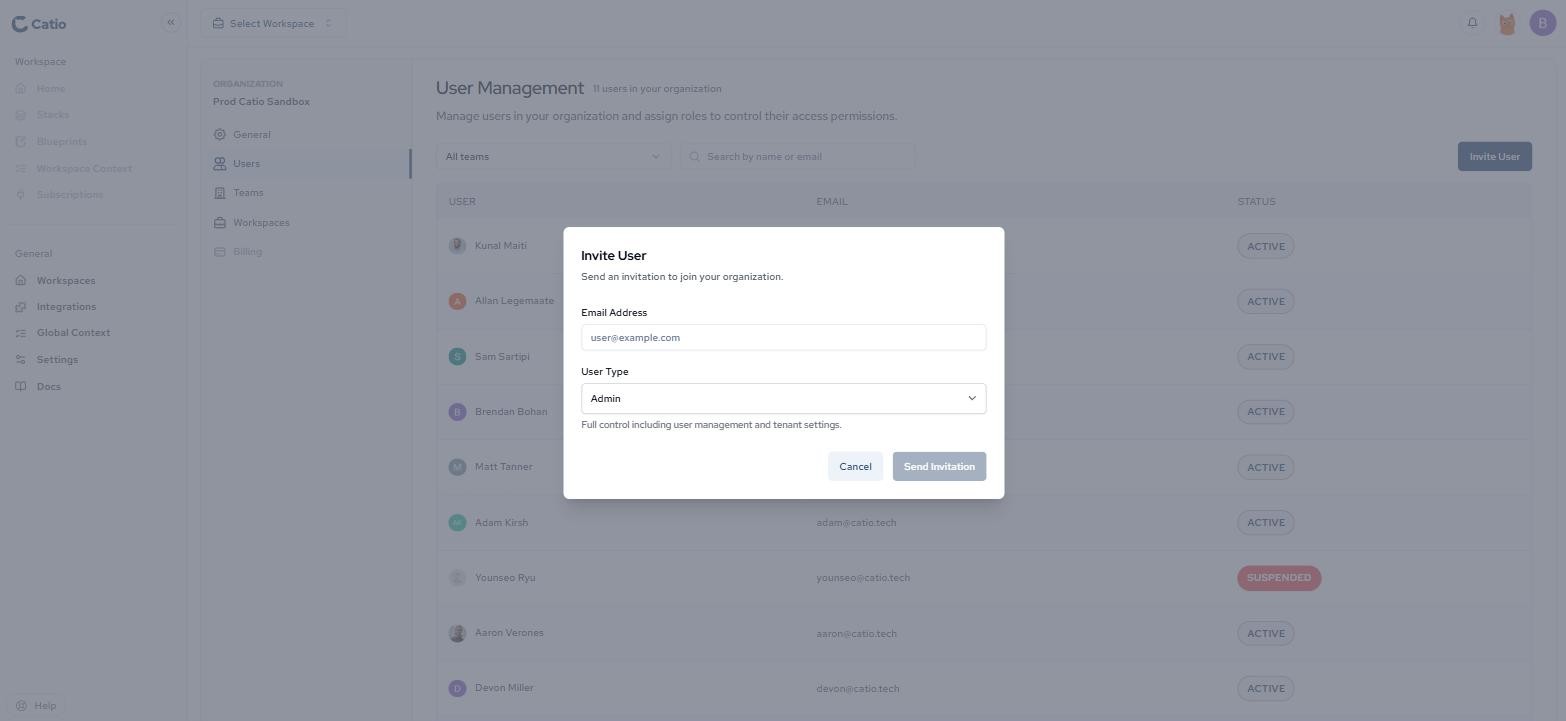
The invite dialog defaults to AdminUser Type is pre-set to Admin, which grants full control including user management and tenant settings. Change it on every invitation unless you genuinely intend to create another admin. This is the single easiest way to over-provision a Catio organization.
The invited user receives an email with instructions to join. Once they accept, they appear in your Users list.
2. Confirm roles
Open Settings → Users and scan for anyone who should not be an Admin, particularly if invitations were sent before the Admin default was understood. Correct anyone's role in the Edit User modal.
3. Create teams
Create teams for groups that tend to share the same workspaces. Model teams on how work is organized, not on your org chart.
4. Set workspace access
Public for organization-wide reference material, private with the right users and teams for everything else. Remember that Step 2 defaults to Public.
5. Audit
Open Settings → Workspaces and read the Visibility column top to bottom. Anything marked PUBLIC that holds live inventory, cost data, or unresolved findings should be reviewed.
Best practices
Change User Type on every invitation. The dialog defaults to Admin, so accepting the default silently creates another administrator.
Default to private for anything with real inventory. Public is right for reference material and shared patterns. It is rarely right for a workspace containing live infrastructure inventory, cost data, or unresolved security findings. Making something public later costs nothing; making it public too early cannot be undone.
Choose the workspace creator deliberately. The creator becomes the owner and cannot be removed from the access list. For long-lived workspaces, have a stable team lead run the wizard.
Grant access through teams wherever a stable group exists. Individual adds are correct for genuinely ad-hoc membership. They are wrong for "the platform team," because they drift the moment someone joins or leaves. Model teams on how work is organized. If Security and Platform Engineering always pair on compliance work, one Compliance Working Group team beats attaching two teams to every workspace.
Reserve Third Party Partner for actual third parties. It is a Member-equivalent role with one carve-out, not a restricted role. Use Viewer to limit internal staff.
Put sensitive material in Workspace Context, not Global Context. Global Context reaches every workspace.
Audit from Settings → Workspaces on a cadence. Read the Visibility column quarterly and after every reorg, and confirm each private workspace's access list still matches reality.
Offboard by suspending, then sweeping. Suspending revokes organization access. It does not tidy individual workspace memberships, so check those separately if you need a clean record.
Troubleshooting
A user says a workspace has disappeared.
Their access was likely removed, either directly from the workspace's member list, or indirectly by being removed from a team that had access. Open Settings → Workspaces → ... → Edit Workspace Access and check whether they appear individually or via a team. Removing someone from a team silently revokes access to every workspace that team touches.
A user can open a workspace but cannot edit anything.
This is a role limit, not a workspace limit. Check their role under Settings → Users. Viewers are read-only everywhere. Third Party Partners can edit everywhere except Context.
A user cannot see the Context module.
They are most likely a Third Party Partner, for whom Context is excluded entirely. Check the role in the Edit User modal.
A newly invited user cannot see anything.
Confirm they accepted the invitation, then confirm they have been added to at least one workspace. A user in an organization with no public workspaces and no private-workspace membership has nothing to open.
A user's status shows SUSPENDED.
Their access has been revoked via Edit User → ... → Suspend User. Suspended users also disappear from the Create Team member picker.
A team was added to a workspace but its members still cannot access it.
Confirm the change was saved. The Edit workspace access modal requires clicking Save, and Cancel discards. Then confirm the individuals are members of that team under Settings → Teams.
You cannot remove someone from a private workspace.
If their Remove access button is disabled, they are the workspace owner. Owners cannot be removed and there is no in-product transfer. Recreate the workspace under a different owner, or contact Support.
You cannot find the access control in the workspace editor.
You are probably in Edit Workspace Details, whose Step 2 is Subject company. Access lives in Edit Workspace Access, a separate item in the same row menu.
An MCP client cannot see the expected workspace.
Each MCP connection is scoped to the single workspace selected during OAuth login. Clear the server's authentication and log in again, selecting the correct workspace. For multiple workspaces simultaneously, add Catio as a separate named server for each. See Workspace Scoping.
Archie cannot see the architecture.
Archie requires an active, accessible workspace. If no workspace is selected, Archie behaves as a general assistant. Confirm the user has a workspace selected and is on its access list.
You need to change the organization name or logo.
Account self-service is coming soon. In the meantime, reach out to Catio support via the Intercom integration in the bottom-right corner, or contact Support.
Related documentation
- Setting up an Organization: creating your organization before configuring access
- Inviting Users: adding people to your organization
- Users: the Users tab and role definitions
- Teams: creating and managing teams
- Settings: organization configuration overview
- Create a Workspace: the guided creation flow, including Step 2 access
- Edit a Workspace: changing access on an existing workspace
- Delete a Workspace: permanently removing a workspace and its data
- What is Workspace Context?: the module excluded from Third Party Partner
- Global Context: organization-wide context, not scoped by workspace
- Workspace Scoping: how MCP connections bind to a single workspace
- Access Controls: revoking MCP client access
- Who is Archie?: per-user, per-workspace conversation scoping
- Support: contacting the Catio team
Updated about 1 month ago