

Search Global Context
Find entries across your organization-wide context.
Search Global Context lets you ask a natural-language question and get back the organization-wide context that answers it. Use it to find the constraints, goals, and requirements Catio holds across your workspaces without browsing through every source file.
This search runs from the Global Context page.
Running a search
Type a question into the search bar in plain language. For example: "I need to see what kind of systems in my architecture have security requirements."
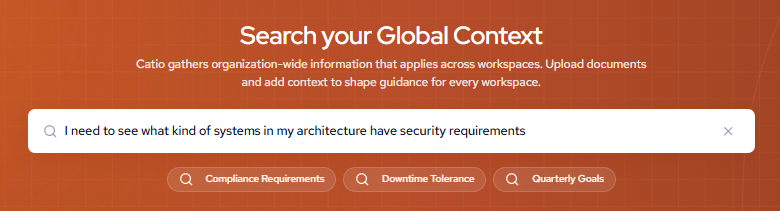
To jump to a common topic, select one of the quick-search chips instead of typing:
- Compliance Requirements
- Downtime Tolerance
- Quarterly Goals
Reading your results
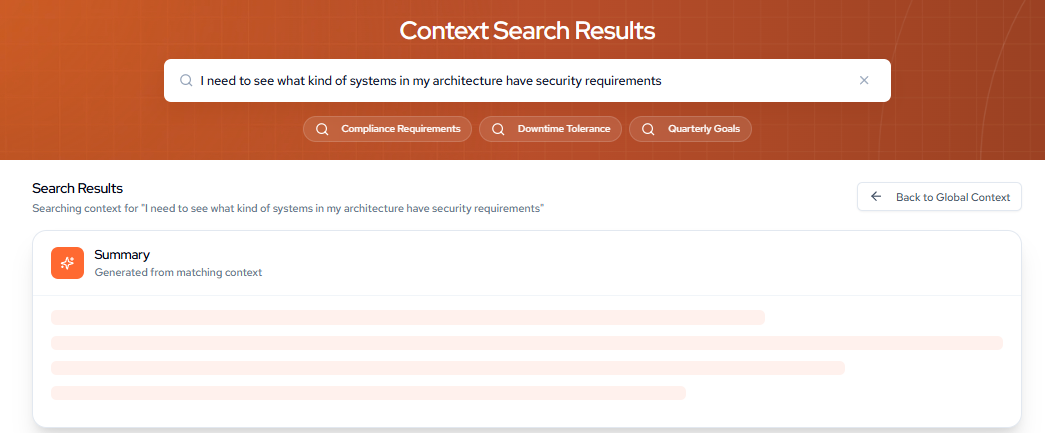
Your query opens the Context Search Results page. The heading confirms what you searched for, and the results appear in two parts: a summary and the matching passages.
Summary
The Summary card sits at the top of the results and is generated from the matching context. It pulls the relevant points together into a single readable answer, so you do not have to assemble them from the individual passages yourself.
Matching passages
Below the summary, Catio lists the individual passages that matched your query. Each passage is ranked, with its position shown as a number (#1, #2, and so on).
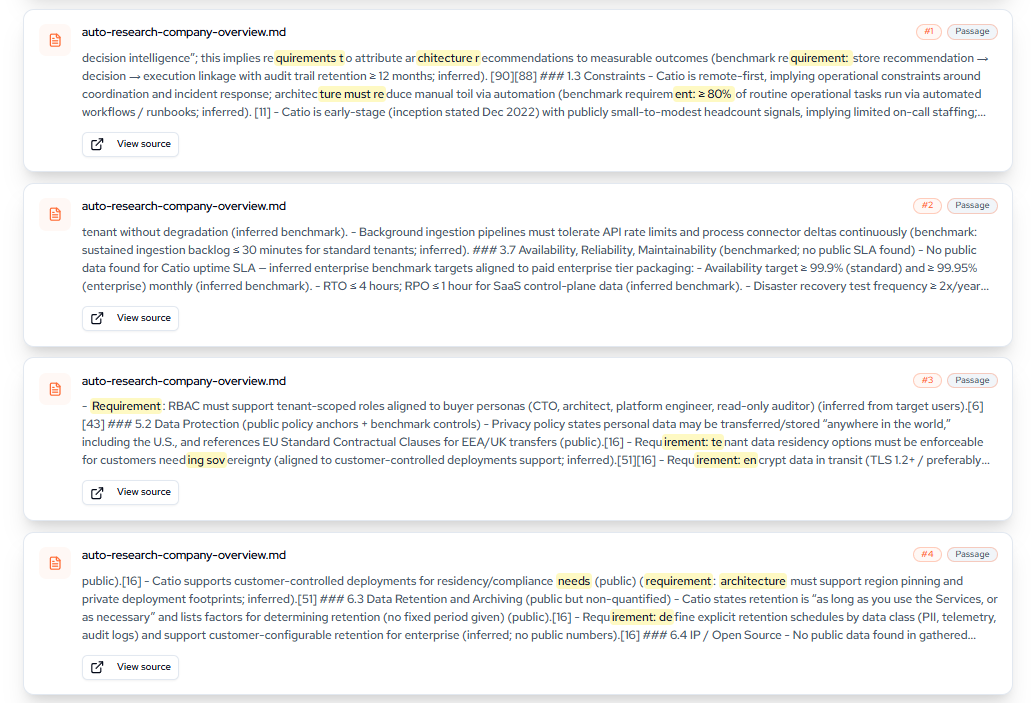
Every card includes:
- The source file the passage came from.
- A Passage tag.
- The passage text, with the terms that matched your query highlighted.
- A View source button that opens the source file.

Returning to Global Context
Select Back to Global Context at the top of the results page to return to the Global Context overview.
Updated about 1 month ago