

AWS Cost and Usage Report Integration
What the Cost and Usage Report integration contributes, and what you need to connect it.
What this contributes
The Cost and Usage Report attaches spend to components. It is what turns the ROI on a blueprint from an estimate into a figure traceable to your actual bill.
The AWS integration tells Catio what exists. The Cost and Usage Report tells it what each of those things costs. Without it, cost-related blueprints can still identify waste structurally, such as idle or over-provisioned resources, but cannot put a defensible number against the saving. Any Focus on Cost Performance is materially weaker without it.
See ROI Filter for how a blueprint reports value once this data is present.
Setting it up
The wizard has five steps: select the integration, create the CUR export, enter the S3 details, create the IAM role, then review and name it.
1. Select AWS Cost and Usage Report
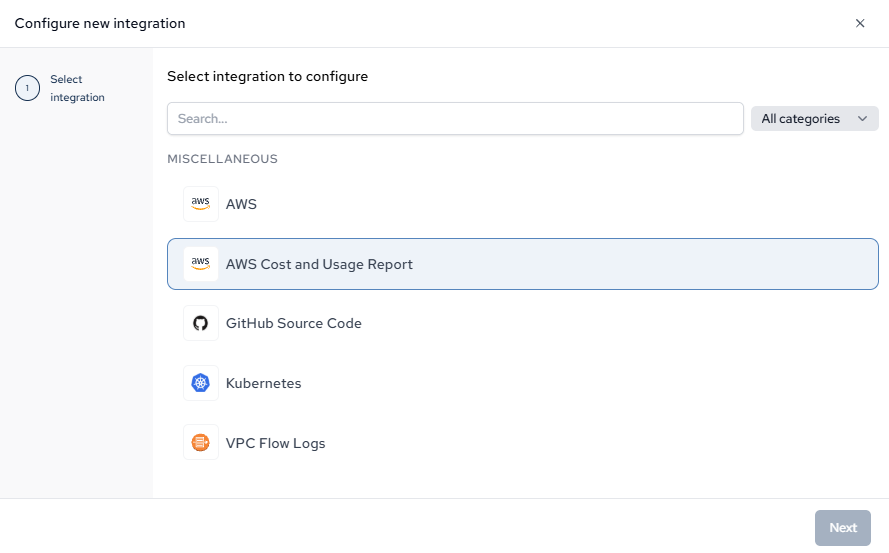
Connect the AWS integration first. This one enriches components that already exist in the inventory — costs are mapped onto them, not used to create them, so with an empty inventory there is nothing for the spend to attach to.
2. Read what the extractor does
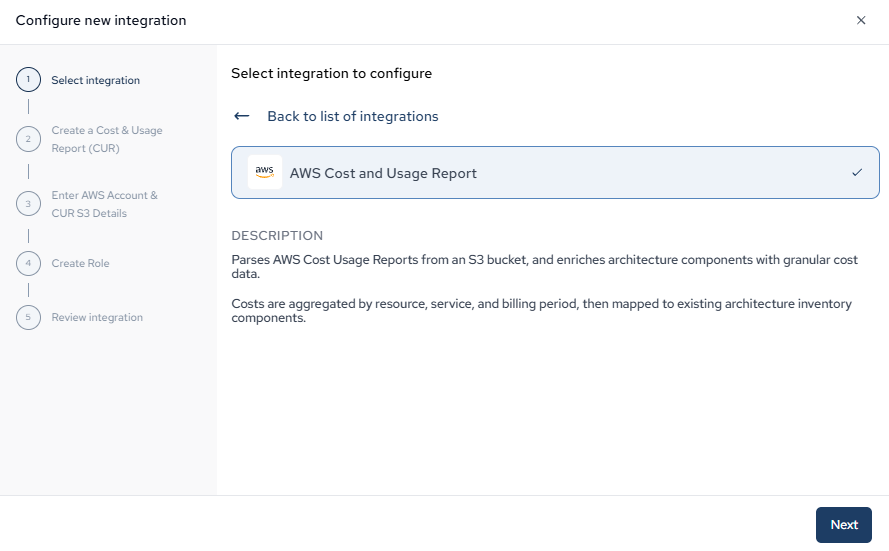
It parses Cost and Usage Reports from an S3 bucket and aggregates cost by resource, service, and billing period, then maps each figure onto the matching architecture component.
3. Create the Cost & Usage Report export
If you already deliver a CUR to S3 in Parquet, skip this step. Otherwise, in AWS Billing and Cost Management → Data Exports → Create export, choose Standard data export with these settings:
| Setting | Value | Why |
|---|---|---|
| CUR version | CUR 2.0 | The schema the extractor parses |
| Columns | All columns | Missing columns cannot be recovered later without recreating the export |
| Additional content | Include resource IDs | The one that matters most. Without resource IDs, costs can only be attributed at the service level, so spend cannot be mapped to individual components |
| Time granularity | Daily | Monthly rollups are too coarse to show change within a billing period |
| File versioning | Overwrite existing report | Prevents duplicate line items across successive deliveries |
| File format | Parquet | Required by the extractor |
AWS delivers the first export within 24 hours, so start this step before you need the data.
4. Enter the AWS account and CUR S3 details
Point Catio at the bucket. Two fields decide what gets imported, and both are worth a moment:
- Usage account ID filter. If the CUR covers consolidated billing across several accounts, this narrows the import to one account's line items. Leave it empty to bring in everything. Setting it when you did not mean to is a quiet way to end up with a cost picture that looks smaller than reality.
- Cost history. The lookback window (default 4 months) governs how many recent billing months are imported. Set a cost start month in
YYYY-MMform instead if you need a fixed baseline — for example, the month a cost mandate started. More history makes trend and seasonality visible; less history imports faster.
The bucket field takes the bucket name only, not an ARN or an s3:// URL. The key prefix is optional and matches the path your export writes to. Region defaults to us-east-1 if left unset, so set it if your bucket lives elsewhere.
5. Create the IAM role
Same assume-role model as the main AWS integration, but deliberately narrower. The role must be named CatioConsoleAccessRoleCUR and it is scoped to the CUR bucket alone: s3:ListBucket on the bucket, and s3:GetObject plus s3:GetObjectVersion on its contents. Nothing else in the account is reachable through it.
Trust it to arn:aws:iam::090135924592:role/CatioPlatformAccessIRSA, conditioned on the External ID shown in the wizard. That value is generated automatically and stored for you — you do not need to record it.
Do not attach any AWS managed policies to this role. The inline bucket policy, named CatioCURS3Access, is the whole permission set. The wizard shows both the CLI commands and the Console steps with the bucket name already filled in.
6. Review and name the integration
Name it for the billing account it reads, so it is identifiable when you subscribe it to a workspace.
Done when
A run completes and components in the Architecture Inventory start carrying cost figures. Blueprint ROI is then traceable to the bill rather than estimated — see ROI Filter. If costs do not appear, the usual causes are a CUR without resource IDs, or a bucket prefix that does not match. See Integration Troubleshooting.
Updated about 1 month ago