

VPC Flow Logs Integration
What the VPC Flow Logs integration contributes, and what you need to connect it.
What this contributes
VPC Flow Logs map the relationships between components: what actually talks to what, how often, and across which boundaries.
This is the difference between a declared architecture and an observed one. Infrastructure and configuration data tell Catio what is connected on paper. Flow logs tell it which of those paths carry traffic, and reveal dependencies nobody documented. Blueprints about coupling, blast radius, segmentation, and consolidation depend on it.
Setting it up
The wizard has four steps: select the integration, choose an authentication method, configure the log source, then review and name it.
1. Select VPC Flow Logs
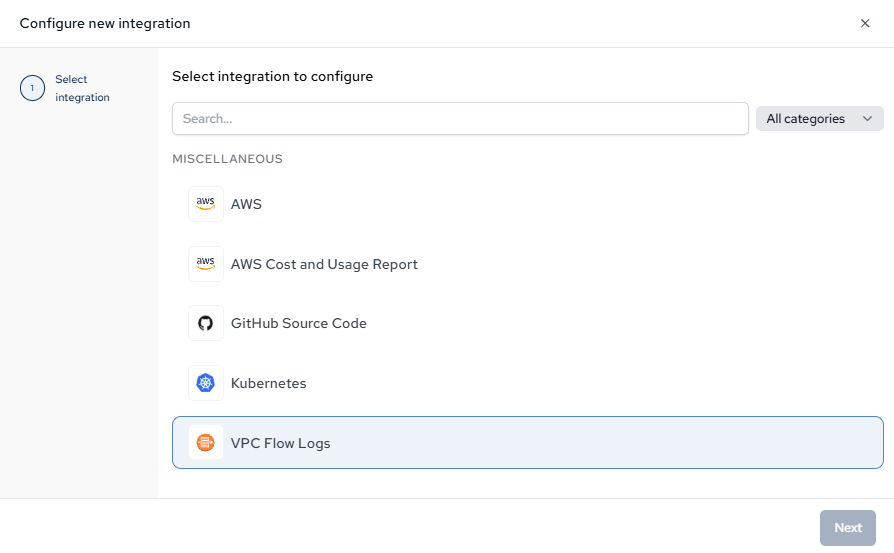
You need flow logs already being delivered — to a CloudWatch log group or an S3 bucket. Catio reads them; it does not enable them. Connect the AWS integration first so the components the traffic runs between already exist.
2. Read what the extractor collects
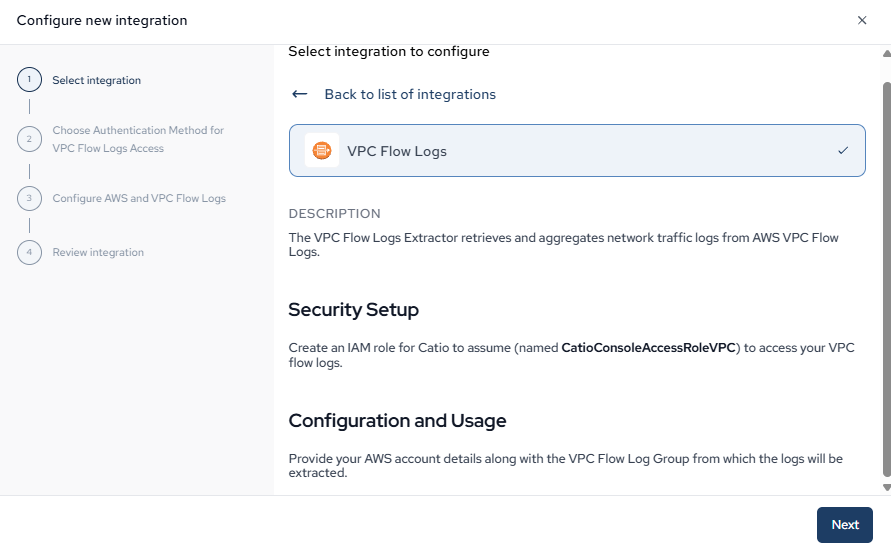
It retrieves and aggregates network traffic records, then turns them into relationships between components already in the inventory.
3. Choose an authentication method
Two options, and the right one depends on where the logs live relative to the account you are connecting.
Role assumption (assume_role) is the default and the right choice in most cases. Create a role named CatioConsoleAccessRoleVPC, trusted to arn:aws:iam::090135924592:role/CatioPlatformAccessIRSA and conditioned on the External ID the wizard shows. Attach ReadOnlyAccess, then the inline CatioDenyPolicyVPC, which denies the actions that would return data rather than telemetry — kms:Decrypt, secretsmanager:GetSecretValue, ssm:GetParameter*, DynamoDB reads and the rest. It is the same shape as the main AWS deny policy, with S3 object reads left permitted because that is where the logs are.
S3 bucket policy (s3_bucket) is for cross-account access, when the bucket receiving your flow logs sits in a different account from the one you are connecting. Add a bucket policy granting Catio's role s3:GetObject, s3:ListBucket, and s3:GetBucketLocation. Include GetBucketLocation: it lets the extractor detect the bucket's region automatically, and without it the region falls back to us-west-2, which silently reads the wrong place if that is not where your bucket is. If you take this path, select s3_bucket as the authentication method in the next step.
The wizard shows the full policy JSON for both paths, with a download link.
4. Configure the log source
Point Catio at the logs and decide how much of them to read.
- AWS Account Id is the account used for the connection. Log Source Account Id is separate, and only matters when one bucket collects flow logs forwarded from several accounts — set it to extract just one account's traffic. Leave it blank to use the same account.
- VPC Log Source is
cloudwatchors3. The next field takes the CloudWatch log group name or the S3 bucket name accordingly. - Log Source Region filters logs by source region. Under S3 authentication the bucket's own hosting region is auto-detected, or falls back to
us-west-2. - Time Interval (default 1 hour) decides how far back to read, and is the field that most affects what the resulting graph shows. An hour captures steady-state traffic. Paths that only fire on a nightly batch, a weekly job, or a failover will not appear unless the window covers them — so widen it to a day or several days when you are mapping dependencies rather than sampling current activity.
- Maximum Extraction Time (S3 sources only, up to 200 seconds) caps query runtime on large buckets by evenly sampling within the window. Sampled results are representative of volume, but a rare path can be missed.
- Stale Component Days (default 60) archives components and relationships that have not been seen for that many days. This is what keeps the observed graph honest — a path that stopped carrying traffic two months ago stops being presented as a live dependency.
5. Review and name the integration
Name it for the VPC or environment whose traffic it reads.
Done when
A run completes and relationships appear between components in Diagrams and the Architecture Inventory — including ones nobody had documented. If the run succeeds but no relationships appear, widen the time interval before assuming a permissions problem. See Integration Troubleshooting.
Updated about 1 month ago